Encrypting Email in Outlook Using Native Tools and HIPAA Services

encrypting email outlook guide featured image

๐Ÿ”‘ Key Takeaways

  • Outlook encrypts three ways: Purview Message Encryption, S/MIME certificates, or Sensitivity Labels.
  • Purview needs Business Premium or higher and works for external recipients through a browser portal.
  • S/MIME needs a certificate on both sides but delivers true end-to-end encryption inside Outlook.
  • Sensitivity Labels auto-encrypt PHI at scale but require E3 or E5 licensing plus Purview setup.
  • Layer a per-seat HIPAA service on PHI senders instead of upgrading the whole tenant to Premium.

Outlook supports three built-in methods for encrypting email. Microsoft Purview Message Encryption, S/MIME certificates, and Sensitivity Labels each cover a different scenario. All three integrate with the standard Outlook compose experience.

This guide covers each method for encrypting email in Outlook, including the setup, the sender steps, and the recipient experience. It also covers when a separate HIPAA encrypted email service is a simpler fit.

The right method depends on plan level, recipient mix, and IT capacity. Read each section for the fit and pick the path that matches your practice.

Microsoft Purview Message Encryption Is the Default Path

Microsoft Purview Message Encryption is the default encrypted email path for Microsoft 365 Business Premium and higher plans. The sender uses the Encrypt button in the Outlook ribbon. Purview handles the encryption and delivery on the server side.

The sender opens a new message, clicks Options in the ribbon, clicks Encrypt, and picks either Encrypt-Only or Do Not Forward. Encrypt-Only allows the recipient to reply, forward, and print. Do Not Forward applies rights management and blocks those actions.

Purview supports recipients on Microsoft 365, Outlook.com, Gmail, and any other mail platform. External recipients on non-Microsoft platforms receive a notification email with a Read the message button. The button opens outlook.office365.com in a browser tab.

The recipient signs in with a Microsoft or Google account or requests a one-time passcode. The decrypted message displays inline with attachments listed below. Detailed sender instructions are in the Microsoft support guide for encrypted messages in Outlook.

The Encrypt Button Requires Business Premium or Higher

The Encrypt button in Outlook is not available on every Microsoft 365 plan. The required plans are Microsoft 365 Business Premium, Microsoft 365 E3, Microsoft 365 E5, Microsoft 365 Apps for Enterprise with Azure Information Protection Premium, or the standalone Azure Information Protection Premium license.

Business Basic, Business Standard, and Microsoft 365 Apps for Business do not include the Encrypt button. Adding it requires either an upgrade or a per-seat license add-on. The cost adds up quickly for practices with dozens of mailboxes.

Practices on lower Business plans have two options: upgrade every seat that needs to send encrypted mail, or use a separate HIPAA email service that works alongside Outlook without changing the license structure. The math depends on how many seats actually need to encrypt.

Front-desk staff sending appointment reminders may not need encryption. Clinicians sending patient records probably do. Map the actual send flow before committing to a plan upgrade.

encrypting email outlook in article illustration one

S/MIME Provides End-to-End Message Encryption

S/MIME is the older, standards-based encryption method for Outlook. It uses X.509 certificates issued by trusted authorities. The sender encrypts with the recipient public key. The recipient decrypts with the matching private key.

Setup happens in the Outlook Trust Center. Go to File, Options, Trust Center, Trust Center Settings, Email Security. Add the certificate under Digital IDs. Choose the encryption algorithm and hash. Enable digital signing and encryption on outgoing messages if you want defaults applied automatically.

Certificates come from DigiCert, Sectigo, IdenTrust, or an internal certificate authority in an Active Directory deployment. Cost runs from around fifty dollars per user per year for standard certificates to several hundred for enterprise deployments with automated renewal.

S/MIME works well when both parties have certificates. It does not work when the recipient does not. This limits S/MIME to internal use inside organizations with a managed PKI, or to external partners with a formal certificate exchange arrangement.

Sensitivity Labels Automate Encryption Decisions

Sensitivity Labels are the enterprise path to encrypted email in Outlook. Administrators define labels in the Microsoft Purview compliance portal and configure content-scanning rules that flag messages containing PHI, financial data, or other regulated fields.

Applied labels can require encryption automatically, restrict forwarding, block download of attachments, and apply retention rules. The sender does not have to decide. The label is applied by policy based on the content of the message.

Deployment requires Microsoft 365 E3 or E5 licensing and Microsoft Purview Information Protection configuration. The setup is significant. Content patterns, sensitive information types, and label rules all need to be defined and tuned to the practice.

Sensitivity Labels pay back at enterprise scale. A health system with hundreds of users benefits from centralized policy. A small practice with ten users usually does not. The setup effort exceeds the value at that scale.

Example

A 12-person orthopedic clinic runs Microsoft 365 Business Standard for scheduling and internal chat. Only three clinicians actually send patient records. Upgrading all 12 seats to Business Premium would add $120 per month for the Encrypt button. Instead, the clinic keeps Business Standard for the full team and layers a HIPAA email service on the three clinician mailboxes at $10 each. Total added cost is $30 per month, the BAA is included, and general staff mail continues through Outlook untouched.

The Recipient Experience Is the Real Differentiator

The recipient experience varies across the three Outlook encryption methods. Purview messages open in a browser tab after sign-in or one-time passcode. S/MIME messages open in the mail client if the certificate is installed. Sensitivity Label messages open based on the label configuration.

The choice affects patient and vendor communications. External recipients on personal Gmail or Yahoo accounts see the Purview browser tab. That works but adds a step. External recipients with S/MIME certificates see the message inline in their client, but very few personal accounts have S/MIME set up.

Practices sending mostly to external recipients on mixed platforms usually pick Purview or a HIPAA email service. Both handle the external case with a portal or link fallback that does not require recipient setup.

Practices sending mostly to internal or partner recipients with managed PKI usually pick S/MIME for the inline experience. The choice matches the recipient mix.
encrypting email outlook in article illustration two

Encrypting Attachments Follows the Same Method as the Body

Attachments in Outlook encrypt through the same method as the message body. Purview encrypts attachments in the message envelope. S/MIME wraps attachments inside the encrypted message. Sensitivity Labels can also apply protection to attachments as a separate policy layer.

The recipient experience for attachments varies by method:

  • Purview Encrypt-Only allows download of attachments after decryption
  • Purview Do Not Forward blocks download and shows preview only
  • S/MIME attachments decrypt in the client and save locally as normal files
  • Sensitivity Labels can persist protection on the attachment even after download

Attachment size limits follow the sender platform. Outlook and Purview handle standard mail attachment sizes up to 150 megabytes on Microsoft 365 plans. Very large files should use OneDrive sharing links with rights management or a dedicated HIPAA file transfer service.

PHI-containing attachments still fall under HIPAA once the recipient decrypts the file. Downloaded local copies need the same protection as any other patient record. The encryption ends at the mail client boundary.

The BAA With Microsoft Covers the Platform Side

Microsoft signs a business associate agreement covering the Microsoft 365 services under the standard Microsoft 365 BAA terms. The BAA covers Exchange Online, SharePoint, OneDrive, Teams, and the encryption services under Microsoft Purview.

The BAA is available at no extra cost. Administrators accept the BAA in the Microsoft 365 admin center under the compliance section. The BAA becomes effective immediately and covers the tenant.

The BAA covers the Microsoft side. The covered entity is responsible for configuring the tenant correctly, maintaining access logs, training staff, and applying encryption to regulated content. HIPAA compliance is a shared responsibility. Microsoft handles the platform. The covered entity handles the practice-level configuration.

The HHS guidance on business associate agreements outlines the specific terms required. Practices should review the Microsoft BAA against the HHS requirements before signing.

๐Ÿ’กPro Tip: Map the actual PHI send flow before upgrading licenses

Front-desk staff sending appointment reminders rarely need encryption. Clinicians sending patient records almost always do. Before paying to add Business Premium across every seat, count how many people actually send PHI in a normal week. If it is a fraction of the team, a per-seat HIPAA service layered on those mailboxes costs less than a tenant-wide plan upgrade and keeps the rest of the workforce on the plan they already use.

Common Errors Break the Encryption Flow

Encrypting email in Outlook works reliably when configured correctly. Common errors that break the flow include license mismatch, missing certificate, and policy misconfiguration.

The most common issue is missing licensing. The Encrypt button does not appear on lower plans. Users try to send encrypted mail and the option is not available in the ribbon. Fix by upgrading the plan or adding the Azure Information Protection license.

S/MIME errors usually trace to certificate problems. Missing certificate, expired certificate, or certificate from an untrusted authority all break the encryption. Fix by installing or renewing the certificate through the Trust Center.

Policy misconfiguration on Sensitivity Labels is subtler. A label may not apply if the content pattern does not match, or a label may apply incorrectly on non-regulated content. Fix by tuning the sensitive information types and label rules in the Purview compliance portal.

HIPAA Practices Often Add a Second Layer

Healthcare practices often run Outlook alongside a dedicated HIPAA email service. Outlook handles day-to-day mail. The HIPAA service handles patient-facing messages that require verified encryption and a signed BAA specific to healthcare.

The two-layer approach separates concerns. General staff mail stays inside Outlook. Regulated mail routes through a service designed for the HIPAA case. Compliance auditors see clear separation between general and regulated flows.

The setup keeps Outlook simple. Users continue to send general mail through Outlook. They send patient records through the HIPAA service either from a browser interface or from an Outlook plugin. The audit trail comes from the HIPAA service.

This approach fits practices that use Outlook for scheduling, internal communication, and vendor mail, but need a dedicated tool for patient-facing PHI. It matches the workflow more closely than forcing every message through the Purview Encrypt button.

Mailhippo Fits Alongside Outlook for HIPAA Sends

Mailhippo secure email service works with existing Outlook accounts and adds a HIPAA-compliant encryption path without changing the Microsoft 365 plan. The signed BAA is included in the base plan. Recipients open messages through a one-click link with no account creation.

The sender uses Outlook for general mail. When a message contains PHI, the sender routes it through Mailhippo either from a browser interface or from an add-in. The message encrypts, delivers to the recipient link, and logs the send in the audit trail.

This split fits small and mid-size practices that already run Microsoft 365 Business Basic or Business Standard and do not want to upgrade every seat to Business Premium just to enable the Encrypt button. The Mailhippo per-seat rate covers the HIPAA-critical mail without disrupting the base Outlook plan.

The broader compliance picture also includes healthcare website security features and patient portal configuration. Encrypted email is one layer. The full stack covers websites, forms, and internal systems together.

Frequently Asked Questions

How do I encrypt an email in Outlook? +

Open a new message in Outlook. Click Options in the ribbon. Click Encrypt and choose Encrypt-Only or Do Not Forward. Encrypt-Only lets the recipient reply, forward, and print. Do Not Forward blocks forward and print. Write the message, add recipients, and click Send. Microsoft Purview handles the delivery. Internal Microsoft 365 recipients see the message inline. External recipients receive a notification with a Read the message button that opens the encrypted content in a browser tab.

Does encrypting email in Outlook require a license? +

Microsoft Purview Message Encryption requires Microsoft 365 Business Premium or higher, Microsoft 365 Apps for Enterprise with Azure Information Protection, or a standalone Azure Information Protection Premium subscription. Business Basic and Business Standard do not include the Encrypt button. Organizations without the required license can send encrypted mail through a separate HIPAA email service that works alongside Outlook without changing the license structure.

What is the difference between Encrypt-Only and Do Not Forward? +

Encrypt-Only encrypts the message content in transit and at rest. The recipient can reply, forward, and print. Do Not Forward encrypts the content and applies rights management that blocks forward, print, and download. Do Not Forward is the tighter option for regulated content. The sender chooses based on the sensitivity of the message. Both options use the same recipient experience: a browser tab on outlook.office365.com with sign-in or passcode verification.

How do I use S/MIME in Outlook? +

Install a certificate from a trusted authority. Open Outlook, go to File, Options, Trust Center, Trust Center Settings, Email Security. Add the certificate under Digital IDs. Enable Encrypt contents and attachments for outgoing messages if you want default encryption on every send. Otherwise, click the Encrypt button in each new message. S/MIME needs a certificate for every recipient. Outlook stores recipient certificates from signed messages you have received. Recipients without a certificate cannot decrypt the message.

Can I encrypt attachments in Outlook? +

Yes, Microsoft Purview and S/MIME both encrypt attachments along with the message body. Recipients open attachments after the same verification path used for the message. Do Not Forward blocks download of attachments and shows them in a portal preview only. Practices sending large attachments containing PHI should confirm the attachment size limits of the sending platform. Purview handles standard mail attachment sizes. Very large files should use a HIPAA-compliant file transfer service instead of email.

What happens if the recipient does not have a Microsoft account? +

The recipient can sign in with a Google account, sign in with a Yahoo account, or request a one-time passcode delivered to the email address the message was sent to. The one-time passcode option works for any address. The recipient does not need a Microsoft account or a Microsoft 365 subscription. The passcode arrives in a second email within a minute. The recipient enters it in the browser tab to decrypt the message.

Is encrypting email in Outlook enough for HIPAA? +

Not on its own. HIPAA compliance requires a signed business associate agreement, which Microsoft includes with the standard Microsoft 365 BAA. It also requires access logging, workforce training, encryption at rest and in transit, and correct Purview configuration. The Encrypt button covers the transmission layer. The covered entity is responsible for the surrounding controls. Practices without a dedicated IT team often use a HIPAA email service that includes the BAA and simpler configuration in the base plan.

How to Enable Email Encryption in Office 365 for Healthcare Teams

enable email encryption office 365 guide featured image

๐Ÿ”‘ Key Takeaways

  • Purview Message Encryption activates on Microsoft 365 E3, E5, Business Premium, or Office 365 E3.
  • The fastest rollout is a mail flow rule that triggers Encrypt-Only on PHI keywords or labels.
  • PowerShell scripts Set-IRMConfiguration and New-TransportRule for reproducible tenant baselines.
  • S/MIME gives cryptographic sender ID but demands certificate distribution to every user device.
  • Pair encryption with MFA, conditional access, DLP, and audit logs for defense-in-depth compliance.

Healthcare teams running Microsoft 365 already own most of the tools they need to send encrypted email. The Encrypt button in Outlook, mail flow rules in Exchange, and rights management services in Azure combine into a working encryption stack that meets HIPAA transmission requirements.

The gap is configuration. Most practices discover that the default Office 365 tenant does not enable email encryption until an administrator turns it on, assigns the right licenses, and writes a mail flow rule. Teams that want a simpler path often pair Microsoft 365 with a dedicated encrypted email service to skip the per-user setup work.

This guide walks through the exact steps to enable email encryption in Office 365 from the admin center, PowerShell, and Outlook. It also covers S/MIME setup, mail flow rules, DLP policies, and the license checks that trip up first-time deployments.

Confirm your Office 365 license includes encryption

License verification comes first. Microsoft Purview Message Encryption ships with Microsoft 365 E3, E5, A3, A5, G3, G5, Business Premium, and Office 365 E3 and E5 plans.

Business Basic and Business Standard do not include Purview by default. Administrators on those plans add Azure Information Protection Premium P1 as an add-on license, upgrade the tenant, or route encryption through a third-party service.

To check coverage, sign in to the Microsoft 365 admin center, open Billing, then Licenses. Confirm that assigned licenses include Azure Rights Management Service and Microsoft Purview Message Encryption entitlements.

Users without the correct license see the Encrypt button greyed out in Outlook. Fixing that means assigning the license, waiting for the tenant to provision, then having the user sign out and back in to refresh the token.

Activate Azure Rights Management in the admin center

Azure Rights Management is the underlying service that Purview Message Encryption depends on. New tenants have it enabled by default, but tenants created before 2018 or tenants that were manually disabled need activation.

Open the Microsoft 365 admin center. Go to Settings, then Org settings, then Services. Find Microsoft Azure Information Protection and select it. Click Manage Microsoft Azure Information Protection settings, then Activate.

The activation runs in the background. After a few minutes, the service shows as Activated and the tenant is ready for message encryption policies.

Administrators who prefer to script this step run Enable-AadrmService or the newer Set-IRMConfiguration cmdlet through Exchange Online PowerShell. Both approaches produce the same result and are documented in Microsoft Purview Message Encryption setup guides at learn.microsoft.com.

enable email encryption office 365 in article illustration one

Create a mail flow rule to trigger encryption automatically

Manual encryption depends on staff clicking the Encrypt button on every sensitive message. Mail flow rules remove that dependency by triggering encryption based on message content, sender, recipient, or attached sensitivity labels.

Open the Exchange admin center. Go to Mail flow, then Rules. Click the plus icon and select Apply Office 365 Message Encryption and rights protection to messages.

Set the condition to match the trigger you want. Common conditions include the subject or body containing terms like PHI, patient, or diagnosis, or messages sent to external recipients from clinical users.

Choose the RMS template. Encrypt-Only lets recipients forward, while Do Not Forward blocks reply-all, forwarding, and printing. Save the rule and send a test message to confirm the recipient portal loads as expected.

Enable email encryption in Office 365 with PowerShell

PowerShell is the fastest path for IT teams managing multiple tenants or scripted deployments. Install the Exchange Online Management module, then connect with the appropriate global admin credentials.

Run Install-Module with the name ExchangeOnlineManagement once per machine. Then connect with Connect-ExchangeOnline and the global admin user principal name.

Enable the service with Set-IRMConfiguration and the AutomaticServiceUpdateEnabled parameter set to true. Verify state with Get-IRMConfiguration. The output should show ServiceLocation, LicensingLocation, and InternalLicensingEnabled populated with valid values.

Create mail flow rules with New-TransportRule. Bulk operations save hours when standing up encryption across acquired practices, new subsidiaries, or lab environments where a repeatable baseline matters more than a one-time click-through.

Example

An orthopedic group in Cleveland with 22 users on Microsoft 365 Business Premium needed automatic encryption for outbound referral letters. The IT contractor scripted the rollout through PowerShell, enabling IRM with Set-IRMConfiguration and creating a mail flow rule that triggered on subject keywords like referral, MRI, and X-ray. A second DLP policy caught patterns like ICD-10 codes and insurance member IDs. Total configuration ran 45 minutes. The first test message from a licensed mailbox to a personal Gmail address delivered a Microsoft portal link within seven seconds.

Use the Encrypt button in Outlook desktop and web

Once the tenant is configured, individual senders trigger encryption from Outlook without additional setup. In Outlook desktop, open a new message, click the Options tab, then click Encrypt.

Choose the protection template from the drop-down. Encrypt applies default protection, Do Not Forward blocks reply-all and forwarding, and any custom labels created by the tenant appear alongside the built-in options.

In Outlook on the web, the Encrypt button lives at the top of the new message pane. The behavior is identical to the desktop version, and messages appear in the recipient portal with the same experience.

Mobile users on the Outlook iOS and Android apps get the same Encrypt option under the three-dot menu when composing a message. Recipients open the encrypted message through a portal link and sign in with Microsoft, Google, or a one-time passcode.

enable email encryption office 365 in article illustration two

Configure S/MIME for regulated communications

S/MIME provides cryptographic identity verification on top of encryption. It requires certificate distribution to every user and device, which raises the operational cost but delivers sender authentication for compliance-critical exchanges.

Deploy a certificate authority or use a public CA. Push user certificates through Group Policy, Intune, or manual import into the personal certificate store. Confirm the store shows the certificate under Trusted Publishers.

In Outlook 2007 and later, open File, Options, Trust Center, Trust Center Settings, Email Security. Under Encrypted Email, select the S/MIME certificate. Check the boxes to sign outgoing messages and encrypt content and attachments.

S/MIME becomes practical for teams with an existing PKI. Small practices without one usually get better outcomes from Purview Message Encryption or a third-party secure email service that handles keys behind the scenes.

Layer DLP policies on top of encryption rules

Data loss prevention policies inspect messages for regulated content patterns. When a match hits, the policy applies encryption automatically or blocks the message and notifies the sender.

Open the Microsoft Purview compliance portal. Go to Data loss prevention, then Policies. Click Create policy and choose the U.S. Health Insurance Act (HIPAA) template as a starting point.

The template detects patterns like Social Security numbers, ICD-10 codes, DEA numbers, and insurance member IDs. Set the action to apply Purview Message Encryption when the policy matches an outbound message.

Tune the policy over the first two weeks. Review the DLP alert dashboard, adjust match confidence thresholds, and add exceptions for internal training data or test accounts. A tuned policy catches PHI leaks without blocking legitimate clinical email.

๐Ÿ’กPro Tip: Script the tenant baseline with PowerShell for reuse

Save the Set-IRMConfiguration, Enable-OrganizationCustomization, and New-TransportRule commands in a single .ps1 file with comments naming each step. When a mailbox migration, tenant reset, or license upgrade happens, the same script rebuilds the encryption baseline in under 10 minutes. Manual UI clicks are the leading cause of drift between what the risk register says is configured and what the tenant actually has active. A checked-in script also serves as evidence of consistent policy enforcement during an OCR audit.

Test the encryption workflow end to end

Testing catches misconfigured rules before staff sends real PHI through a broken flow. Set up two accounts. Use one licensed Office 365 mailbox as the sender and one external Gmail or Yahoo account as the recipient.

Send a test message with the word PHI in the subject line to trigger the mail flow rule. The external recipient should receive a wrapper message with a link to view the encrypted content.

Open the portal link. Sign in with a Microsoft account, a Google account, or request a one-time passcode. Confirm the message body renders correctly, and reply from the portal to test round-trip encryption.

Document each step with screenshots. Save the DLP report, the mail flow rule configuration, and the PowerShell output. This documentation becomes evidence during HIPAA audits, business associate reviews, and internal security assessments.

Match encryption with the HIPAA Security Rule

The HIPAA Security Rule addresses transmission security under 45 CFR 164.312(e). Encryption is an addressable standard, which means covered entities either implement it or document a reasonable alternative.

Office 365 encryption meets the transmission standard when configured with the mail flow rules and DLP policies described above. Practices should also enable multi-factor authentication, conditional access, and audit logging to satisfy access control and integrity standards.

The HHS Security Rule guidance outlines the full set of technical safeguards. Encryption alone does not satisfy the rule, but it addresses one of the more visible controls that auditors ask about first.

Healthcare organizations also need a signed business associate agreement (BAA) with Microsoft. The BAA is available through the Microsoft Service Trust Portal and covers Office 365, Exchange Online, and Purview Message Encryption when configured for HIPAA workloads. Compliance also depends on healthcare website security features that protect the public-facing side of the practice.

Choose between native encryption and a dedicated service

Native Office 365 encryption works well for organizations that already run on Microsoft 365 E3 or Business Premium and have IT staff to manage mail flow rules, license assignments, and Purview policies.

Small practices without dedicated IT often find the setup and ongoing maintenance costly. Every license change, tenant migration, or Outlook update creates a potential point of failure that a solo IT contractor needs to troubleshoot.

Mailhippo works alongside existing Gmail or Outlook accounts as a HIPAA-compliant secure email service. The base plan includes a business associate agreement and applies TLS with client-side encryption without requiring PGP keys or separate client software. Recipients open messages with one click.

Teams building the workflow further may want to look at enable office 365 email encryption, review outlook 365 enable encryption email options, or benchmark against email encryption office 365 business premium to confirm the plan level covers the needed features.

  • Confirm license coverage before touching mail flow rules.
  • Activate Azure Rights Management once per tenant.
  • Script repeat deployments with PowerShell instead of the admin UI.
  • Layer DLP policies on top of manual encryption for PHI patterns.
  • Document the full configuration for HIPAA audit evidence.

Frequently Asked Questions

Which Office 365 plans include email encryption? +

Microsoft 365 E3, E5, A3, A5, G3, G5, Business Premium, and Office 365 E3 and E5 include Microsoft Purview Message Encryption at no extra cost. Business Basic and Business Standard plans do not include Purview Message Encryption in the base license. Practices on lower-tier plans need to add Azure Information Protection Premium P1, upgrade the tenant, or use a third-party secure email service. Verifying license coverage before enabling encryption avoids failed mail flow rules and confused end users.

How long does it take to enable email encryption in Office 365? +

A single-tenant configuration with existing Purview Message Encryption licensing takes about 30 to 60 minutes. That includes activating Azure Rights Management, creating a mail flow rule, testing an outbound message, and documenting the setup. Multi-tenant rollouts, custom branding, and DLP policy tuning add several hours. Practices adding licenses first should expect provisioning delays of up to 24 hours before the Encrypt button appears in Outlook for newly licensed users.

Do external recipients need an Office 365 account to read encrypted mail? +

No. External recipients receive a notification message with a link to a secure portal hosted by Microsoft. They sign in with a Microsoft account, a Google account, or request a one-time passcode delivered to the recipient email address. The message opens in the browser, and replies stay inside the encrypted thread. Recipients on mobile see the same experience through the Office mobile app or a standard web browser.

Can I enable email encryption in Office 365 with PowerShell? +

Yes. Connect to Exchange Online PowerShell using Connect-ExchangeOnline, then run Set-IRMConfiguration with the AutomaticServiceUpdateEnabled parameter set to true and enable the rights management service with Enable-OrganizationCustomization. Verify the state with Get-IRMConfiguration and Test-IRMConfiguration against a licensed mailbox. PowerShell also handles bulk mail flow rule creation through New-TransportRule, which is faster than the admin center for tenants with dozens of rules or repeated deployment across labs, subsidiaries, and clinics.

How does S/MIME differ from Microsoft Purview Message Encryption? +

S/MIME uses digital certificates issued to individual users. Each sender signs and encrypts the message with keys bound to a verified identity, and each recipient needs a matching certificate to read the message. Microsoft Purview Message Encryption uses a policy-based approach that does not require recipient certificates. S/MIME provides stronger identity assurance for regulated communications with fixed partners. Purview scales better for healthcare teams sending to patients, insurers, and referral partners who do not manage certificates.

Is Office 365 email encryption enough for HIPAA compliance? +

Encryption satisfies the transmission security standard under the HIPAA Security Rule, but compliance requires additional controls. Practices need multi-factor authentication, access controls, audit logs, workforce training, a signed business associate agreement with Microsoft, and documented policies. Encryption without those supporting controls fails an OCR audit even when messages themselves are secured. Treat encryption as one layer inside a broader compliance program rather than the finish line for HIPAA readiness.

What if the Encrypt button does not appear in Outlook after licensing? +

Check three items in order. First, confirm the user license includes Purview Message Encryption in the Microsoft 365 admin center. Second, verify Azure Rights Management is active by running Get-IRMConfiguration and checking that RMSOnlineActivated returns True. Third, sign the user out of Outlook and back in to refresh the license token. If the button still does not appear, restart Outlook in safe mode and clear the Office credentials cache under Windows Credential Manager.

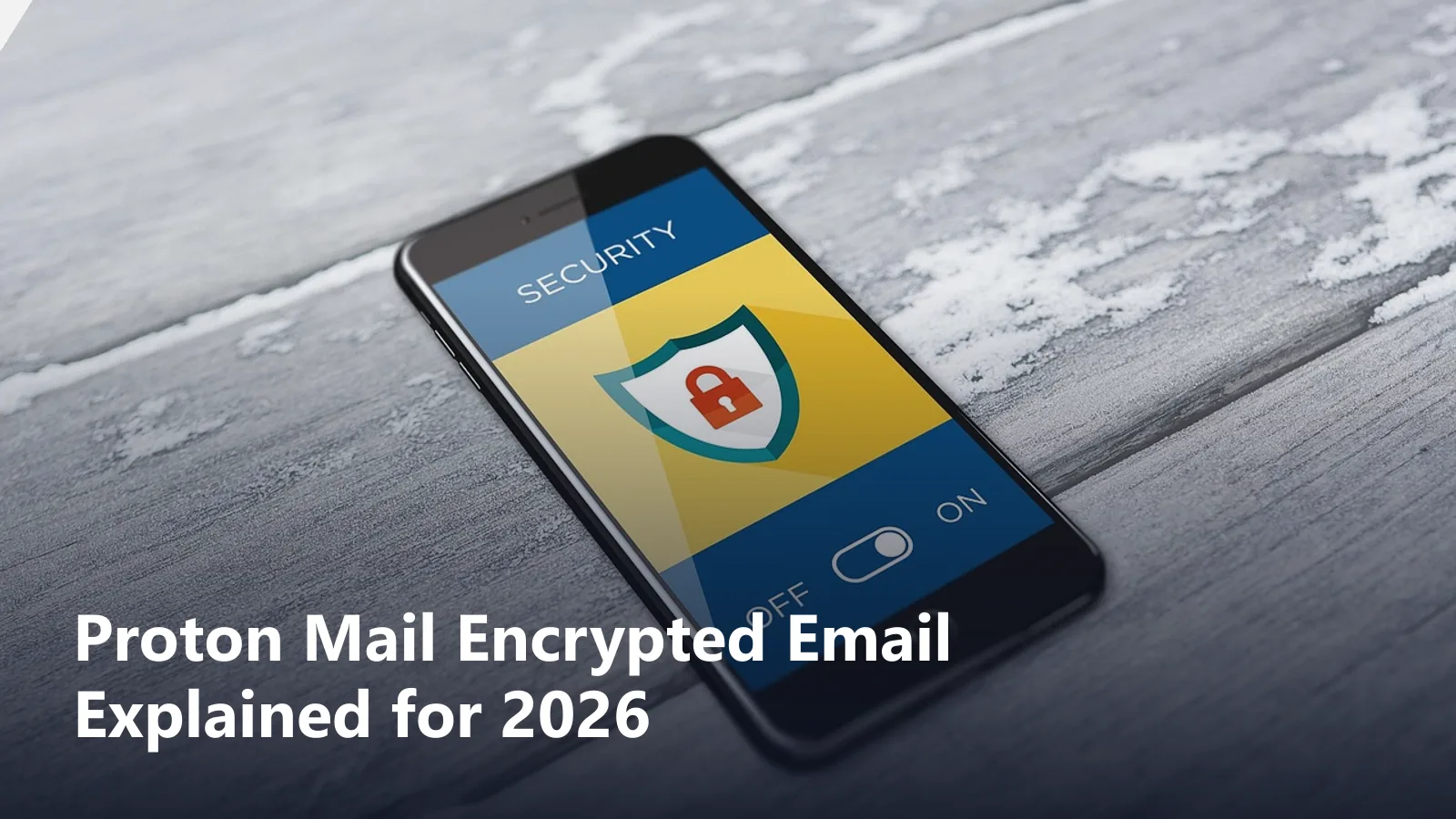
Proton Mail Encrypted Email Explained for 2026

proton mail encrypted email guide featured image

๐Ÿ”‘ Key Takeaways

  • Proton Mail encrypts every stored message end-to-end; Proton servers see only the ciphertext.
  • External recipients hit a password portal, which drops adoption fast for high-volume patient mail.
  • Proton supports PGP interoperability through contact-card public keys for cross-system exchange.
  • Proton Business Plus at $12.99 per user per month includes a BAA; Free and Plus tiers do not.
  • Practices sending 200 messages a week face portal password tickets; zero-step services fit better.

Proton Mail encrypted email uses end-to-end encryption by default on every message stored on its servers. The sender private key stays on the sender device, and the recipient private key stays on the recipient device.

Proton positioned the service as a privacy-first alternative to Gmail and Outlook. The cryptographic model attracted journalists, security researchers, and privacy-conscious individuals first, then expanded into business plans that include a business associate agreement for regulated users. Practices evaluating encrypted email options often compare Proton Mail against portal-based services and zero-step alternatives.

This guide walks through how Proton Mail encryption actually works on the wire, what the different Proton Mail plans cover, and where practices with heavy external mail volume face friction.

Proton Mail encrypted email cryptographic model

Proton Mail generates a key pair on the user device at account creation. The public key uploads to Proton servers and appears in the user profile. The private key stays on the device, encrypted with a hash of the account password.

Every message stored on Proton servers uses one of two encryption states. Messages between Proton accounts encrypt with the recipient public key, decrypt only with the recipient private key. Messages from external senders encrypt at rest with the recipient public key after arrival.

The model means Proton Mail cannot read stored messages even under legal request. The Swiss court can subpoena the metadata and any unencrypted account information, but not the message body of encrypted messages.

The tradeoff is account recovery. Losing the account password without an active recovery method also loses access to every encrypted message in the mailbox. Proton warns about this state at signup and offers a recovery phrase to mitigate the risk.

Proton Mail encrypted email to Proton Mail recipients

Messages between two Proton Mail accounts encrypt automatically without any sender action. The composer detects the recipient Proton public key and applies encryption in the browser or app before the message leaves the sender device.

The recipient sees a lock icon at the top of the message. Clicking the lock shows the cryptographic details, including the signing key fingerprint and the encryption algorithm.

Reply and forward inside Proton Mail also stay encrypted end to end. The sender does not need to remember to enable encryption because the default is on for every Proton-to-Proton exchange.

This flow gives Proton Mail its strongest security guarantee. Practices with a homogeneous Proton Mail user base get end-to-end encryption without any user education or password sharing step.

proton mail encrypted email in article illustration one

Proton Mail encrypted email to non-Proton recipients

Messages to Gmail, Outlook, or other non-Proton recipients require the sender to enable password-based encryption in the composer. The sender picks a password and shares it out of band with the recipient.

Proton Mail sends a notification email to the recipient with a portal link. The recipient clicks the link, enters the shared password, and reads the message inside the browser. The portal supports reply, which sends the reply back through the same portal encrypted with the same password.

The portal step is the biggest source of friction for high-volume senders. A patient who forgets the password calls the office. A patient who does not read the notification email misses the message entirely.

The reply to encrypted email workflow describes how the portal reply flow handles common cases like attachments, quoted text, and multi-message threads.

Proton Mail encrypted email PGP interoperability

Proton Mail supports PGP for interoperability with other encrypted email systems. Senders upload a recipient PGP public key to a Proton contact card. Outbound messages to that contact encrypt with the recipient key.

Inbound PGP messages decrypt with the Proton Mail private key when the external sender used the Proton public key. Proton Mail publishes its public keys through the Proton Web Key Directory endpoint at proton.me/.well-known/openpgpkey.

PGP interoperability makes Proton Mail workable for security researchers, journalists, and technical users who already exchange keys. Configuring PGP takes patience and a working understanding of key management.

For general healthcare use, PGP key exchange is too complex to scale across a patient population. Most patients cannot generate a PGP key, and asking them to do so violates the reasonable and appropriate standard in the HIPAA Security Rule.

Example

A privacy-focused therapy practice in Portland moved to Proton Business Suite at $12.99 per seat for four clinicians and one office manager. Internal case notes travelled end-to-end encrypted with no configuration. External patient mail hit friction fast: 200 encrypted messages per week meant 200 portal password sessions, and the office manager fielded 30 patient calls in the first week about lost passwords. The practice kept Proton for internal mail and layered Mailhippo for outbound patient messages. Patient support calls dropped to two per week within a month.

Proton Mail Business plans and HIPAA eligibility

Proton Mail Free at $0 per month and Proton Mail Plus at $4.99 per user per month do not include a business associate agreement. Neither plan can be used for PHI.

Proton Business Suite at $12.99 per user per month includes a signed BAA. The BAA covers Proton Mail, Proton Drive, Proton Calendar, and Proton VPN. Practices accept the BAA in the admin console during onboarding.

Configure the required admin settings after accepting the BAA. Enable two-factor authentication on every account. Set the Proton retention window to meet the six-year Privacy Rule requirement. Disable Bridge access for accounts that do not need IMAP or SMTP relay through desktop clients.

Reference the current plan matrix at Proton Business plans and the sample BAA provisions at HHS sample BAA provisions before adoption.

proton mail encrypted email in article illustration two

Google Mail encrypted email comparison

Gmail encrypts every message in transit with TLS on every Workspace tier. That is the baseline layer. Confidential mode adds link expiry and passcode options on every tier as a second layer, though the message content stays readable to Google.

Gmail S/MIME on Enterprise Plus adds certificate-based encryption. Users install an S/MIME certificate in the Workspace admin console. Outbound messages to recipients with a public certificate encrypt automatically.

Gmail signs a BAA on paid Workspace plans configured for HIPAA. The BAA covers Gmail, Drive, Calendar, Meet, and other core services. Practices sending real PHI usually stack a portal-based encryption service on top for cases when the recipient does not have S/MIME.

Compared with Proton Mail, Gmail treats encryption as opt-in. Proton Mail treats encryption as the default. See encrypted email service by proton for a deeper feature comparison against alternatives.

Canary Mail and third party encrypted email clients

Canary Mail is a third party mail client for iOS, Mac, and Windows that adds S/MIME and PGP encryption on top of any IMAP or Exchange account. Users install Canary Mail, connect their Gmail or Outlook account, and generate keys inside the client.

Canary Mail does not run its own mail server. The underlying mail service handles storage and BAA obligations. Canary Mail is a UI layer on top of the existing account.

Canary Mail Pro at $49 per year adds unlimited encryption features and read receipts. The free tier limits encryption to a small number of messages per month.

Users on apple mail encrypted email setups sometimes prefer Canary Mail for the tighter S/MIME integration. Canary Mail on the desktop bridges to iOS through iCloud sync of the certificate store.

๐Ÿ’กPro Tip: Disable auto-forwarding on every PHI-carrying Proton account

Auto-forwarding rules to non-Proton accounts strip the end-to-end encryption on the forwarded copy. A clinician who forwards case notes to a personal Gmail for offline reading defeats every cryptographic guarantee Proton Mail provides. Open the account settings, remove any active forwarding rule, and disable the option at the admin level so users cannot re-enable it. Document the change in the risk register as evidence of a technical safeguard applied to prevent unauthorized disclosure of PHI.

Encrypted zip as a fallback for encrypted mail

Encrypted zip attaches a password-protected archive to a normal email. The sender shares the password through a separate channel like SMS or phone. The recipient extracts the archive with the password.

The pattern works everywhere and does not require any special mail server or client. Security depends on password strength and the out-of-band password channel.

HIPAA compliance treats encrypted zip as a reasonable and appropriate safeguard when configured with AES-256 encryption and a strong password. The Windows built-in zip does not support AES. Use 7-Zip or WinZip Pro to produce AES-256 archives.

Encrypted zip does not scale. Every message requires manual password sharing. Every recipient needs zip software that supports AES. Automated services like Mailhippo remove the manual step and standardize the recipient experience.

Proton Mail encrypted email limitations and workarounds

Proton Mail encryption breaks in a few common scenarios. Auto-forwarding rules to non-Proton accounts strip the end-to-end encryption on the forwarded copy. Legacy mail clients that connect through Bridge lose the automatic encryption in the client display.

Search inside Proton Mail runs against the client-side decrypted copy. Server-side search is not possible because the server cannot read the content. On large mailboxes, search performance drops compared to Gmail or Outlook server search.

Common workarounds:

  • Disable auto-forwarding on any account that carries PHI
  • Use the Proton Mail app rather than a legacy IMAP client
  • Set a longer local search index window on the app
  • Enable Bridge only for accounts that require it
  • Rotate the account password on the standard 60 to 90 day cycle

When to pick a HIPAA alternative to Proton Mail encrypted email

Practices with heavy external patient mail volume often face portal password support tickets. A five-person practice sending 200 encrypted messages per week to 200 unique patients handles 200 password sessions per week.

A zero-step encryption service like Mailhippo removes the portal step. Encrypted messages arrive directly in the recipient normal Gmail or Outlook inbox and open like any other message. The sender picks Mailhippo in the toolbar for messages that need encryption and skips it for messages that do not.

Practices running HIPAA compliant website design already understand the reasonable and appropriate standard. Applying the same standard to email means picking the tool that keeps compliance tight while dropping recipient friction. See also security features for healthcare websites for the parallel web guidance.

For further reference, review NIST SP 800-177 Trustworthy Email and the HIPAA Journal guide to compliant email before finalizing the encrypted mail stack. See encrypted email and send encrypted email for related walkthroughs.

Frequently Asked Questions

How does Proton Mail encrypted email work? +

Proton Mail generates a key pair on the user device at signup. The public key uploads to Proton servers so other Proton users can encrypt messages to it. The private key stays on the device, encrypted with the account password. Messages between two Proton accounts encrypt automatically end to end. Messages to external recipients require password-based encryption, which sends a portal link that the recipient opens with a shared password. PGP support adds interoperability with other encrypted email systems.

Is Proton Mail HIPAA compliant? +

Proton Mail Business Plus and higher include a signed business associate agreement, making them HIPAA-eligible when configured correctly. Free and Plus tiers do not include a BAA and cannot be used for PHI. Practices adopting Proton Mail Business need to accept the BAA in the admin console, enable two-factor authentication on every account, and configure Proton retention to meet the six-year Privacy Rule requirement. Test the patient reply flow before deploying because the portal step often drops adoption compared to zero-step alternatives.

How do I reply to a Proton Mail encrypted email? +

If you use Proton Mail yourself, open the message and click Reply. The reply automatically encrypts to the sender Proton Mail account. If you received the message as a non-Proton recipient through a portal link, log in to the portal with the shared password, click Reply inside the portal, and send. The reply stays encrypted through the portal. If the sender used PGP, you need your own PGP key configured in your mail client to reply securely with the same encryption level.

How does Google Mail encrypted email compare to Proton Mail? +

Gmail encrypts every message in transit with TLS on every Workspace tier. Confidential mode adds link expiry and SMS passcode options. Gmail S/MIME on Enterprise Plus adds certificate-based encryption. Proton Mail encrypts every stored message with end-to-end encryption using keys the user controls. Gmail treats encryption as an optional add-on. Proton Mail treats encryption as the default. Gmail signs a BAA on paid Workspace plans. Proton Mail signs a BAA on Business Plus and higher.

What is Canary Mail encrypted email? +

Canary Mail is a third party mail client for iOS, Mac, and Windows that adds S/MIME and PGP encryption on top of any IMAP or Exchange account. Users install Canary Mail, connect their Gmail or Outlook account, and generate keys inside the client. Outbound messages encrypt automatically to any recipient with a public key on file. Canary Mail does not run its own mail server, so the BAA question depends on the underlying mail service. Canary Mail Pro at $49 per year adds encryption features.

How does encrypted zip compare to encrypted email? +

Encrypted zip attaches a password-protected archive to a normal email. The sender shares the password through a separate channel. The recipient extracts the archive with the password. Encrypted zip works everywhere and does not require any special mail server or client. The security depends entirely on password strength and out-of-band password sharing. HIPAA compliance uses encrypted zip as a fallback for one-off transfers when the recipient cannot access a proper encrypted email service. Automated services like Mailhippo remove the manual step entirely.

When does a HIPAA alternative fit better than Proton Mail? +

Practices with high external mail volume, low IT staffing, or a mixed recipient base often benefit from a zero-step alternative to Proton Mail. Proton Mail portal delivery requires the recipient to remember a shared password. Zero-step services deliver encrypted messages directly to the recipient normal inbox without the portal step. Mailhippo and similar services fit this pattern. The tradeoff is the sender loses the strong Proton cryptographic guarantees in exchange for simpler recipient handling. Pick based on threat model.

How to Open an Encrypted Email on Any Device

An encrypted email can feel confusing the first time you see it. The message may look different from normal mail, or ask you to click a special link or enter a code. If you are busy running a practice or a team, you want to know how to open it safely and get to the information.

The good news is that most encrypted emails follow a small set of patterns. Once you recognize those patterns, the process feels much easier. The same ideas apply to computers, phones, and tablets.

If you want a broader overview of what sits behind these messages, you can read MailHippoโ€™s guide to encrypted email. This article stays focused on the โ€œhow do I open itโ€ part.

What does opening an encrypted email usually involve

Opening an encrypted email nearly always involves two big steps. First, you reach the right place, such as your inbox or a secure web page. Then you prove who you are so that the system can show you the protected content.

Sometimes the proof is very simple. You may already be signed in to your work email, so your mail app unlocks the message with no extra action from you. The only sign is a small lock icon or banner at the top.

In other cases, you may see a โ€œRead secure messageโ€ button. That button opens a secure page in your browser, which then asks for a password or one-time code. Once you pass that check, the message appears in full.

On any device, the key ideas are the same. You do not need to install heavy tools in most cases. You follow a short access path, then read the email like any other note.

What to check before you open the message

The sender’s name and address

Before you click anything, look at who sent the email. Check both the display name and the actual address. A really secure message from your clinic, bank, or law firm should come from a domain you recognize.

Watch for small spelling changes, such as extra letters or swapped characters. Attackers often use lookalike domains to trick people. If the address feels wrong, contact the sender through a known phone number or website instead of clicking links.

If you are not sure, a quick call to the office can save a lot of trouble.

The email subject line

Next, read the subject line. Many encrypted emails use clear wording such as โ€œSecure messageโ€ or โ€œYou have a protected messageโ€. That can be a good sign, yet it is not proof on its own.

Think about whether the subject fits any recent activity. For example, a subject about lab results makes sense after a recent visit, but not out of the blue. If a subject pushes you to act in a hurry, take an extra moment to think.

Keep in mind that subjects often stay in plain text, even for a real encrypted email. They help you spot the message in your inbox, but they do not guarantee safety.

Any security notice in the message

Many secure email services add a short notice at the top of the message. It might say that the email was sent through a secure portal, or that you should click a button to read it.

Look for clear, simple wording rather than vague sales talk. Real services rarely ask for your email password inside that notice. They usually send you to a secure page instead, where you sign in or enter a code.

If the notice asks you to share your password, bank PIN, or full card number, close the email and contact the sender by another route.

Common ways encrypted emails are delivered

Directly inside the inbox

Some encrypted emails arrive as normal-looking messages in your inbox. When you open them, you see the content right away. A small lock icon or banner may show that the message is protected.

In this case, your email app is doing the hard work. It already holds the right key or certificate and quietly decrypts the message for you. This style is common for work emails within a company or a health network.

Through a secure web page

Many clinics, firms, and secure email services use a portal. In that model, the email in your inbox is only a notice. It holds a link or button that opens a secure web page.

You click the link, your browser opens the portal, and you sign in. Once you pass that step, the portal shows you the full message and any files. Replies often stay inside the portal, too.

This pattern works well when you use your own email provider and the sender wants more control over privacy.

Through a one-time passcode

Some systems add a one-time code to the secure web page. The email says a code will arrive via text or in a second email. You enter that code in the portal to open the message.

The code works only once or for a short time. That way, if someone later steals the email, they cannot use the old code. This method provides added security when messages contain sensitive health, financial, or legal information.

Through a file attachment

In a few cases, the email itself may be plain, yet it carries an encrypted file. That file might be a password-protected PDF, an Office document, or a ZIP file.

You open the email, save the file, then open it in the correct viewer. The viewer asks for a password, which you receive by phone, text, or in a different email.

Here, the file holds the protection rather than the message body.

How to open an encrypted email in a browser

Open the message notice

On any device, start by opening the email in your inbox. If it uses a portal, you will see a short notice and a button or link such as โ€œRead secure messageโ€ or โ€œView secure emailโ€.

Read the notice text once. A real one explains that the full message sits on a secure page. It does not ask for your email password in the body of the notice.

Select the access method.

Click the secure button or link. Your browser opens a new tab or window for the portal. You may see a choice of access methods, such as using an existing account or a one-time passcode.

Pick the one that matches the instructions in the email. If you already have an account with that portal, using that login usually makes sense.

Verify your identity

The portal now needs to check who you are. It may ask you to sign in with a password you set earlier. It may send you a one-time code by text, call, or to a second email address.

Enter the code or password on the page. Make sure the page address matches the organization you expect, and that your browser shows a lock near the address bar.

If a code never arrives, look at the โ€œcommon problemsโ€ section later in this guide.

View the protected message.

Once you pass the identity check, the portal shows the full message. You can read it, scroll, and reply from inside that page. Attached files often appear as links or buttons you can click.

On many portals, you can return to the same message later by signing in again. The original notice email usually does not contain the content, so keep your portal login safe.

For more details on what these screens look like, MailHippoโ€™s guide on how an encrypted email looks to senders and recipients has simple examples.

How to open an encrypted email with a one-time passcode

Request the code

If the portal uses codes, it may ask you where to send one. You might see options such as a text message, a phone call, or an alternative email. Pick the option that matches your records with that sender.

Click the button to send the code. Stay on the page while you wait, so you can enter the code as soon as it arrives.

Enter the code

When the code arrives, type it into the field on the web page. Codes often have a short life, so do this step soon. Check for any extra spaces when copying and pasting.

If the portal says the code is wrong, request a new one. Use only the latest code, as older versions may stop working.

Read the message

After the portal accepts the code, it will show you the protected email. You can read it in full, reply, or move between pages if the portal holds more than one message for you.

Take your time. There is no need to rush. Many portals keep the message visible until you log out or close the tab.

Download any files

If the email includes files, they may appear as links or buttons in the portal. Click each one to download or view it. Your browser may ask where to save them.

Keep in mind that once the file is on your device, it may no longer be subject to the same portal rules. Treat it as private and store it somewhere safe.

For more on file protection itself, MailHippo has a guide titled “password-protected file sharing explained.”

How to open an encrypted email with keys or certificates

What does this access method mean

Some work email systems use keys or certificates behind the scenes. These systems include PGP and Sโ€‘MIME. In those cases, your mail app uses a private key to unlock the message content.

You do not see the key itself. You open the email, and the app either shows it or asks for a passphrase once. After that, you can read all protected messages for that session.

What the recipient may need installed

To use keys or certificates, your device needs the right setup. That might be a certificate installed by your IT team, a PGP plugin in your mail app, or a special secure email app.

If you open an encrypted email and see a block of random characters, that often means your app does not have the needed key. Staff in your organization can usually install or fix that for you.

What to do if access fails

If your mail app shows errors about certificates, missing keys, or PGP, contact your IT help desk or email provider. Tell them which device and app you are using, and paste any error text if you can.

Do not try random downloads that claim to fix encryption. Stick to the tools your organization or provider recommends by name.

How to open encrypted attachments

PDF files

If you receive a password-protected PDF, save it to your device first. Then open it in a proper PDF viewer, not just the quick preview in your email app.

The viewer will ask for a password. Type it in exactly as the sender gave it to you. If the password was sent by phone or text, watch for uppercase and lowercase letters.

Zip files

For password-protected ZIP files, save the ZIP and open it in a ZIP tool on your device. When the tool asks for a password, enter it and extract the files.

If the tool does not prompt for a password but still fails, make sure you are using a current ZIP program. Older versions may not support newer encryption standards.

Password-protected documents

Word, Excel, and similar files can have their own passwords. Save the file, then open it in the matching program. The program will prompt for a password before it shows any content.

If a password fails three times in a row, stop and ask the sender to confirm it. Many programs lock you out after too many wrong tries.

How to open an encrypted email on mobile

iPhone and iPad

On Apple devices, you can open many encrypted emails in the built-in Mail app or in the official Gmail or Outlook apps. Tap the message in your inbox and look for a link or a lock icon.

For portal-based messages, tapping the secure link will open Safari or another browser. Follow the same steps you would on a computer. Type codes carefully, as phone keyboards can slip.

If your work uses certificates or special keys, your IT team may install a profile on your device. Once that is in place, encrypted mail should open like any other message.

Android phones

On Android, the process is similar. Use the Gmail or Outlook app, or the app your provider recommends. Tap the email, then tap any secure link to open the portal in your browser.

If a message will not open in the app, try the same account in a browser. Some advanced encryption types work better in webmail on mobile.

Keep your phoneโ€™s system and apps up to date, as old versions can break secure views.

Mobile browser access

Many portals are designed to work well in mobile browsers. If the notice email tells you to use a link, you can usually tap it and complete all steps on your phone.

If a page looks broken or too small, try turning the phone sideways. If that still feels hard to use, you can switch to a laptop for that message, then speak with the sender about easier mobile access next time.

How to tell if the message is real

Signs the message may be legitimate

Real encrypted emails often match recent activity. For example, you visited a clinic last week and are now receiving a secure message about the results. The sender address matches the clinic domain, and the portal page uses that same name and logo.

The language in the email is clear and calm. It explains that the full message sits on a secure page and that you will sign in or use a code. It does not push you to act in panic.

Signs it may be a scam

Scam emails often try to scare you. They may warn that your account will close within hours or that you owe money immediately. They may pretend to be from big brands yet use odd addresses.

Be wary of messages that ask for your email password, bank PIN, or full card number. Real services do not request those by email.

If the web page after the link looks cheap, has spelling errors, or does not match the brand you expect, close it.

What not to click

Do not click links or open attachments in an email you do not trust. Do not download โ€œviewersโ€ from unknown sites to open a file.

If in doubt, contact the sender through a known phone number or website and ask if they sent a secure email. It is fine to be careful.

Common problems and fixes

The message will not load

If the secure page does not load, check your internet connection first. Try opening another website. If that works, refresh the secure page or try a different browser.

Some office networks block certain sites. If you are on work Wiโ€‘Fi, try mobile data, or the other way around.

The passcode never arrives.

If a code does not appear, wait a minute, then check your spam and junk folders. For text codes, check that you gave the sender the right phone number earlier.

If nothing appears, use the โ€œresend codeโ€ option if you see one, or ask the sender to resend the secure email.

The attachment will not open.

If an attachment will not open, make sure you saved it first. Then try opening it in the right program, such as a PDF viewer or Word.

If the file asks for a password and you do not have one, contact the sender. Do not guess too many times if the program might lock you out.

The page says ” Access denied

If the portal says you do not have access, you may be signed in with the wrong email, or the link may have expired. Check that the address you use matches the one on the notice email.

If you still see access denied, reply to the sender and explain what the page shows. They may need to resend or update the permission.

The email opens as blank text.

If you open an encrypted email and see only random letters and symbols, your mail app probably lacks the right key or plugin.

In a work setting, share a screenshot with your IT team. For personal accounts, ask the sender whether they can switch to a portal link instead of direct in inbox encryption.

When to contact the sender

Contact the sender when you cannot open a message after simple checks, or when you doubt that an email is genuine. Use a phone number from a business card, website, or past paperwork, not from the suspicious email.

Explain what you see on screen and which device you use. A short chat often clears things up, and the sender may offer an easier option for next time.

Better ways to receive sensitive files

If you often struggle with encrypted email, ask the sender to use a simple secure portal or a clear file-sharing method. One clean login can feel easier than many different email formats.

For some documents, a protected download link or a password-protected file may suit you better than a complex plugin. The guide called password-protected file sharing explains those options.

The right mix depends on how often you receive private files and which devices you use most.

Common questions

How do I open an encrypted email?

Open the notice email, click the secure link or button if present, sign in or enter a one-time code, then read the message in the portal or inbox. If the email opens directly in your app with a lock icon, just read it as normal.

For more detail from the readerโ€™s perspective, MailHippoโ€™s guide on reading encrypted email provides a clear walkthrough.

Can I open an encrypted email on my phone?

Yes. Most encrypted emails can be opened on phones and tablets. You either read them in a mail app with a lock icon, or you tap a link and use your mobile browser to open a secure page.

If a method does not work on your phone, ask the sender for a mobile-friendly portal option.

Why can I not open the encrypted message?

Common reasons include wrong email address, old links, missing keys, or blocked pages. Sometimes the sender used a method your app does not support.

Check your internet connection, try another browser, and look for error messages. If that fails, contact the sender for help or a resend.

Do I need special software?

In many cases, no. A current browser and a normal mail app are enough. Portals handle the encryption work for you.

For some work setups that use PGP or S/MIME, your IT team may need to install certificates or plugins. They usually handle this once, then your normal tools can open messages on their own.

Read next

If you would like a slower walk-through of reading secure mail, with extra tips and examples, take a look at how to read an encrypted email.

To see more examples of how protected messages look on screen, both for senders and readers, you can read how an encrypted email looks to senders and recipients.

For a closer look at file protection that often travels with secure email, see password-protected file sharing explained. It shows simple ways to keep shared documents safer.

How to Send an Encrypted Email Safely

Encrypted email helps you keep sensitive messages out of the wrong hands. The good news is that sending an encrypted email safely does not need to be hard. You follow a few clear steps, choose the right method, and avoid a few common traps.

If you want a wider background first, you can read MailHippoโ€™s guide to encrypted email. Then come back here for the โ€œhow to send itโ€ part.

What an encrypted email send process looks like

When you send a normal email, your message often travels in readable form through several servers. Some links use basic protection, yet many systems on the path can still see the text.

When you send an encrypted email, the flow looks different. You still write a message and add files. Your email tool or secure portal then encrypts the content before it leaves your control. The body and protected attachments travel as scrambled data.

The recipient then opens the message in their inbox or through a secure web page. Their system uses a key, certificate, or passcode to decrypt the scrambled data. Only approved readers can see the clear version.

What you need before you begin

An email service or app with encryption support

Start by confirming that your primary email service supports encryption. That might be Outlook with Microsoft 365, Gmail with Google Workspace, a hosted business email, or a secure email portal.

Many business platforms already include content encryption features. They often appear as a padlock icon, a โ€œprotectโ€ button, or a label such as โ€œconfidentialโ€. A secure portal may encrypt everything by default when you send from inside it.

If your current tool has no clear option for protected sending, you may need a secure email add-on or a separate secure message service.

The right recipient address

Encrypted or not, an email still needs the right address. One wrong letter can send a private report to a stranger. Auto-complete can also pick the wrong contact with a similar name.

Check the To, Cc, and Bcc lines carefully, especially for first-time messages. When handling health, legal, or financial details, consider confirming new addresses with a short, plain test note before sending real data.

A clean address list is one of the simplest safety wins you can get.

A plan for attachments and access

Decide how you will protect attachments and how recipients will gain access. Many tools encrypt attachments together with the message body. Some keep files in a secure portal and send access links instead.

Think about your typical recipients. Staff at your company may open messages in their inboxes. Patients and clients may prefer a secure web page with a simple passcode.

For very sensitive files, you may want both message encryption and file-level protection. MailHippoโ€™s article on how to send encrypted files by email explains that side in more depth.

Main ways to send an encrypted email

Built-in protected sending

Many business email services include built-in protected sending. In Outlook or Gmail, you often see a padlock icon or a menu item that lets you mark a message as encrypted or protected.

From your side, you stay in the normal compose window. You click the secure option and send. The platform encrypts the body and supported attachments behind the scenes.

From the readerโ€™s side, the email may open directly in their inbox, or it may show a button that opens a secure web view. The platform chooses the right path based on the recipient and their setup.

Secure message portals

Secure portals move the full message into a protected website. The email in the inbox is only a notice. It has a short line and a button labeled โ€œRead secure messageโ€.

You write the email either in the portal or through an add-in. When you send, the portal stores the message and sends the notice. The private text never sits as plain content in a normal email.

Recipients click the link, sign in or enter a passcode, and read the message in the browser. This style works well when your recipients use many different email providers.

PGP-based sending

PGP uses public and private keys for each person. You use the recipientโ€™s public key to encrypt the email. They use their private key to read it.

Raw PGP requires extra software or browser add-ons. It suits power users and small technical teams. Non-technical staff often find it complex to use on their own.

Some secure email services hide PGP behind a simple interface. Staff sees a secure send button. The system handles keys in the background.

Sโ€‘MIME-based sending.

Sโ€‘MIME uses digital certificates to link keys to people or roles. Outlook and Apple Mail both support Sโ€‘MIME. Many firms and health networks already use it.

Your IT team or provider installs certificates on staff devices. Once active, staff can tick a box or click a small icon to encrypt a message for any contact whose certificate they hold.

Sโ€‘MIME fits best inside managed business email, where devices and accounts follow company rules.

Password-protected files sent by email

You can protect content by locking the file rather than the message. You send a password-protected PDF, Office file, or ZIP file by email. The body can stay simple.

The recipient opens the email, saves the file, and enters the password to open it. This gives some protection even when the email service itself has weak encryption tools.

You still need to share the password in a separate channel, such as by phone or text. Never put the password in the same email as the file.

Step-by-step guide

Draft the message

Open a new message in your chosen email tool or secure portal. Add the recipient address and a short, neutral subject. Avoid putting names, diagnoses, or account numbers in the subject line.

Write the body of the message. Explain what you are sending and what action you need. Put any private details in the body, not in the subject.

Treat the body as the primary place where encryption works.

Add attachments

Attach the files that support your message. That might be lab reports, Xโ€‘rays, invoices, contracts, or forms. Attach all required files before you switch on encryption.

For very sensitive documents, you may want file-level locks as well. That can mean a password-protected PDF or a protected Office file. The MailHippo guide on sending secure documents via email explains those options.

Check that each file opens correctly on your own device before you send it.

Turn on encryption

Find the encryption or protection option in your email tool. In many apps, this appears as a padlock icon in the compose window. In a portal, it may be the default for all messages.

Click the option that marks the message as encrypted. If you see several levels, pick the one that clearly states content encryption. For example, โ€œEncryptโ€ or โ€œEncrypt and prevent forwardingโ€.

Make sure you turn on encryption before you click send. Some tools show a lock next to the subject once the setting is active.

Pick access settings

Some systems let you tune how people access the encrypted email. You might choose whether recipients can forward or print. You might set an expiry date for the web view. You might limit access to certain domains.

Pick the simplest settings that still meet your needs. For example, you might allow replies but block forwarding for health or legal topics.

If you are unsure which options to pick, start with the defaults, then adjust them after testing with a colleague.

Review the subject line.

Take a fresh look at the subject. Many encrypted email tools do not hide this line. Inboxes and logs often show it in plain text.

Strip out any private detail. A subject such as โ€œYour recent visitโ€ or โ€œYour statementโ€ is safer than one that lists full names and medical or money details.

This small change keeps encryption focused on the parts it can truly protect.

Send the email

Do a final scan. Check the addresses, subject, body, and attachments. Confirm that the encryption or protection setting is still on. Then click send.

For a new setup, send yourself or a colleague a test message first. See how long it takes to arrive and what the view looks like on both desktop and mobile.

How the recipient reads the message

Reading inside the inbox

In some setups, recipients read encrypted email right inside their inbox. The email opens like a normal message, with a small bar or lock icon that shows it is protected.

Their mail app uses stored keys or certificates to decrypt the content in the background. They may enter a passphrase once per session, then read secure messages with no extra clicks.

This style is common for staff inside the same company or health network.

Opening through a secure web page

For many outside recipients, the email in their inbox is only a notice. It has a short line and a button labeled โ€œRead secure messageโ€.

They click the button, and a secure web page opens. The page may ask them to create a password on first use, or it may send a one-time passcode by text or to another inbox.

Once they pass that check, the portal shows the full message and any attached files. They can often reply securely inside the portal, too.

Using a passcode, key, or certificate

Some setups use passcodes, keys, or certificates directly. The person may receive a one-time code by text that they enter into the web page. They may have a private key or smart card on their device.

These pieces act as proof that they are the right person. The system then uses them to unlock the encrypted content.

Explain this step in clear words when you first send secure mail to someone. A short line such as โ€œYou will receive a code by text to open this messageโ€ can reduce confusion.

How to send encrypted attachments the right way

When your email tool encrypts the whole message, attachments often gain the same protection. They travel and rest as scrambled data along with the body.

You can add a second layer by encrypting the files before you attach them. That can be a password-protected PDF, an Office file, or a ZIP file. The file stays protected even if someone moves it out of the email.

Share the password for such files through a different path. A text or short call works well. Do not reuse the same password across many documents.

If attachments are a big part of your work, the guide on sending encrypted files by email is a good next read.

How to send sensitive documents by email

Sensitive documents include full medical charts, legal drafts, payroll lists, and detailed statements. Before you send such items, ask whether email is the best channel.

If email still fits, use both message encryption and strong attachment protection. Keep the subject neutralโ€”limit who receives the message. Set extra controls in your portal if the service supports expiry dates or view-only access.

For step-by-step help, see how to send secure documents via email. That article turns these ideas into a clear checklist.

Common problems and quick fixes

The recipient cannot open the message.

If the recipient cannot open the email, ask what they see. Do they get a broken link, a missing plugin warning, or a blank page?

For link issues, ask them to try a different browser or device. For plugin issues, move the thread to your secure portal view instead of decrypting it directly in the inbox.

If nothing works, send key details by phone and use a secure link for the document while you fix the email path.

Attachment access fails

Sometimes the message opens, but the file does not. The portal may block downloads. The file password may be wrong. The device may lack a viewer.

Confirm that the recipient uses a current PDF or Office viewer. Resend the file if you locked it with the wrong password. In portals, check that the file did not expire by design.

For repeated trouble, switch to a simple PDF with clear file-level protection and test again.

The message arrives without protection.

Now and then, a message that you thought was encrypted may arrive as plain text. That can happen if you forgot to click the lock or if a rule did not trigger as planned.

Open the sent message in your own folder. Check for the lock icon or banner. If it is missing, resend the message with encryption turned on and explain the mistake to the recipient.

If the icon appears, yet the recipient still sees plain text, ask your provider or IT team to review the logs and rules.

The sender used the wrong method.

A sender in your team might use plain email for a topic that needs more care. They might send a password in the same email as the file.

Treat this as a training moment, not a blame session. Show the safer method in a live screen share. Update any quick guides or templates that staff use.

Short, clear rules help. For example, โ€œUse the secure portal for any file that holds patient or payroll dataโ€.

Mistakes that weaken encrypted email

Sending passwords in the same message

If you lock a file and then write the password in the same email, you remove most of the value. Anyone who sees the email gets both the key and the lock.

Always send file passwords through a separate path. Use a text, a short call, or an in-person handover.

Putting private details in the subject line

Subjects often stay in plain text. Many systems show them on phone lock screens and in logs. A subject with full names and medical or money details can leak more than you plan.

Keep subjects short and bland. Let the encrypted body carry the real story.

Assuming all recipients use the same setup

Not every recipient has Outlook, the same version of Gmail, or the same portal. A method that works inside your company may fail for a client on an old webmail account.

When you pick a secure email tool, test it with a few real outside contacts. Adjust your method until non-technical users can open and reply with little help.

Forgetting mobile access

Many patients and staff read emails on phones first. A secure method that works only on full desktops will frustrate them and delay replies.

Test every secure send path on both phone and computer. Check how many taps and screens each method needs on a small device.

When to send an encrypted email

Send an encrypted email when a leak would cause real harm or stress. That includes health details, ID numbers, pay data, legal issues, and private client notes.

A simple rule helps. If you would not post the text on a notice board in your lobby, send it through an encrypted channel instead.

As you get used to this habit, choosing encryption will start to feel natural for the right kinds of messages.

When a secure link may be the better option

Some information should not live in any inbox, even in encrypted form. Master passwords, long-term keys, and deep system access details sit in this group.

In these cases, a secure link or a secret-sharing tool often works betterโ€”the secret lives in a special service. The email contains only a one-time link that can expire after use.

You gain tighter control over how long the data lives and how many copies exist.

Common questions

How do I send an encrypted email?

You write your message, attach files, turn on the encrypt or protect option in your tool, check the addresses and subject line, and then send. Your email platform or secure portal handles the actual encryption.

For a more detailed walkthrough, read “How to Encrypt an Email” step by step. That guide breaks the process into clear stages.

Can I send an encrypted email for free?

Many services already encrypt email in transit between servers at no extra cost. Some plans include content encryption features, too. Free tools exist for PGP and for basic file protection.

Free paths often need more setup and manual work. Paid secure email services usually add support and smoother flows. Start by checking what your current plan already offers.

Can an encrypted email be forwarded?

People can press forward on almost any message. When the email is encrypted, a forward may send only a link or a shell. New readers still need the right access to see the content.

If someone copies text from a decrypted view into a new plain email, that new email will not stay encrypted. Training can reduce that kind of slip.

Can I send encrypted files by email?

Yes. You can send files inside an encrypted email or lock the files themselves before attaching them. Both paths have value.

For full guidance, see how to send encrypted files and secure documents via email. Together, they cover safe file handling from start to finish.

Read next

If you want a deeper view of the full encryption flow, read how to encrypt an email step by step. It links your actions to what happens behind the scenes.

For file-heavy work such as reports and scans, learn how to send encrypted files by email. That guide focuses on documents.

To pull everything together for real-world documents, visit how to send secure documents via email. It shows how message protection and document handling work together.

Cisco Secure Email Encryption Service Explained for Recipients and Admins

cisco secure email encryption service guide featured image

๐Ÿ”‘ Key Takeaways

  • Cisco Secure Email Encryption Service, formerly CRES, is the cloud backend for Cisco gateways.
  • First-time recipients register at res.cisco.com with a password or federate via Microsoft or Google.
  • The service is legitimate but the HTML envelope regularly triggers phishing reports at recipients.
  • Incomplete Payload errors mean the envelope HTML was stripped or truncated; ask for a resend.
  • Cost bundles with the Cisco gateway license at Advanced or Premium tiers, priced for enterprises.

Cisco Secure Email Encryption Service is the cloud backend that carries encrypted email for organizations running the Cisco Secure Email Gateway. It was previously branded Cisco Registered Envelope Service, and the CRES name still appears throughout the recipient interface and error messages.

The service is a genuine Cisco product, but its recipient experience is unusual enough to regularly trigger phishing reports. This article explains what the service does, how registration and login work, what the Incomplete Payload error means, and how healthcare senders use it for HIPAA-compliant transmission.

What Cisco Secure Email Encryption Service actually is

Cisco Secure Email Encryption Service is a cloud service that stores encrypted message content and serves it to authorized recipients through a web portal. It works with the Cisco Secure Email Gateway, which is Cisco outbound email security appliance formerly known as IronPort ESA.

When an outbound message at the gateway matches an encryption policy, the content is uploaded to the encryption service. The gateway delivers a Secure Envelope to the recipient. The envelope is an HTML file that displays a Read Message button and either attaches to the email or is embedded in the message body depending on the sender configuration.

The recipient opens the envelope, authenticates with a CRES account, and views the decrypted message on the Cisco encryption portal. The message content lives on Cisco infrastructure at res.cisco.com and does not enter the recipient inbox in plaintext form.

Cisco documentation refers to the service as CSEE or CRES depending on the vintage of the article. The two names describe the same service. The Cisco Registered Envelope Service documentation is the canonical technical reference.

cisco secure email encryption service in article illustration one

Recipient registration for a first-time envelope

The recipient side of the workflow starts when an encrypted envelope arrives at an email address for the first time. The envelope contains a Register button because the recipient does not yet have a CRES account tied to that address.

The registration steps:

  • Open the envelope HTML attachment or click the Read Message link
  • Choose Register on the initial screen
  • Create a password of at least eight characters
  • Complete the security questions for account recovery
  • Confirm the account through a verification email if required
  • Return to the envelope and log in with the new credentials

Once the account exists, subsequent encrypted messages from any sender using CRES will authenticate against the same account. The recipient does not need a separate registration for each sender. Newer envelope versions support federated sign-in with Microsoft, Google, and Apple, which removes the password creation step for recipients who already use those identities.

Registration is free to the recipient. The sender organization licenses the service through the gateway subscription and covers the cost.

Logging in to the Cisco Secure Email Encryption portal

Recipients access the encryption portal in two ways. The first is through the envelope link in an encrypted message, which routes to res.cisco.com with a message-specific token. The second is direct login at res.cisco.com to view all previously received encrypted messages associated with the account.

The direct login is useful when the original envelope email is deleted or lost. The portal shows an inbox of encrypted messages the account has received, up to the retention window set by the sender. Messages that have expired at the sender level no longer appear.

Password reset is handled through the portal Forgot Password flow. The account security questions established at registration are the primary recovery mechanism. If the recovery questions cannot be answered, the account is effectively locked and a new registration is required, which will not restore access to messages sent to the previous account.

Session timeout for the portal is typically fifteen minutes of inactivity. Long messages read slowly can trigger a re-authentication prompt if the reader pauses.

Example A 400-bed regional hospital in Ohio deployed Cisco Secure Email Gateway with CRES for all outbound clinical mail. The IT team configured DLP scanning to auto-encrypt any message tagged with an ICD code, patient MRN, or DOB paired with a name. In the first month, staff sent 3,200 encrypted envelopes. Twelve recipients called the referral desk claiming the message looked like phishing. The team added a branded logo and a plain-language greeting on the envelope customization panel, which cut the weekly phishing reports from three to zero within a month.

Whether the service is legitimate or a phishing attempt

Cisco Secure Email Encryption Service is a genuine Cisco product used by many enterprise senders. The recipient-side experience regularly triggers phishing suspicion because unsolicited HTML attachments and Read Message buttons pointing to unfamiliar domains are common phishing patterns.

Signals that confirm an envelope is a real Cisco service message:

  • The Read Message link resolves to res.cisco.com or a customer branded subdomain owned by Cisco
  • The envelope displays sender branding matching the actual sender organization
  • The registration flow does not request payment information at any stage
  • The sender email address matches an expected contact

Signals that suggest a phishing attempt impersonating Cisco:

  • The Read Message link resolves to a lookalike domain like res-cisco.com or ciscosecure.co
  • The envelope asks for credit card or bank account information
  • The sender address is unfamiliar and unexpected
  • The message urgency is high and asks for immediate action

When in doubt, contact the purported sender through a phone number or channel you already trust. Do not use contact information provided in the suspicious envelope itself.

cisco secure email encryption service in article illustration two

The Incomplete Payload error and how to resolve it

Incomplete Payload is the most common recipient error with Cisco Secure Email envelopes. The message appears when the envelope HTML content is truncated, missing, or not properly rendered by the client.

Common causes:

  • The recipient mail server stripped the HTML attachment for size or content policy reasons
  • The mail client blocked active HTML and did not preserve the full envelope
  • The download was interrupted or corrupted
  • A mobile client rendered the envelope preview but did not download the full payload

Resolution steps in order:

  • Ask the sender to resend the encrypted message
  • Open the resent message on a different device or client
  • Check spam folders and quarantine for the original envelope
  • Contact the recipient IT team to check whether HTML attachments are being stripped in transit
  • Ask the sender to switch to portal-only delivery rather than attachment delivery

Persistent Incomplete Payload errors across multiple resends usually indicate a systematic issue with the recipient mail environment reformatting the envelope. The sender should switch to portal notification delivery, which sends a smaller link-only email rather than a full HTML envelope attachment.

Sender-side configuration on the Cisco Secure Email Gateway

The gateway administrator configures encryption policies that determine which outbound messages route through Cisco Secure Email Encryption Service. Policies can match on recipient domain, subject line keywords, DLP scanner findings, or mail flow attributes.

A typical healthcare policy encrypts all outbound messages that a DLP scanner tags as containing PHI. The scanner looks for medical record numbers, ICD codes, patient names paired with dates of birth, and other regulated data patterns. Matching messages are encrypted before delivery without requiring the sender to make a per-message decision.

Envelope customization at the sender level covers logo, colors, and greeting text on the portal. Consistent branding reduces recipient phishing reports because the envelope visually matches other communications from the same sender. The branding is configured in the Cisco Secure Email Encryption Service admin console and applies to all envelopes from that sender.

Retention windows for encrypted messages at the portal are also sender-configurable. Common windows are 30, 60, or 90 days. Longer retention makes messages available to recipients for longer but increases the exposure window on unopened content.

๐Ÿ’กPro Tip: Brand the envelope before your first bulk sendLog into the Cisco Secure Email Encryption Service admin console and upload the sender logo, primary color, and a greeting line that names the practice in plain language. Consistent branding cuts phishing reports at the recipient side because the envelope visually matches other messages from the same sender. Skipping this step guarantees a wave of IT tickets and callback requests during the first week, especially from recipients who have never seen a Cisco envelope.

Cost and licensing model

Cisco Secure Email Encryption Service is not sold as a standalone product to sending organizations. It is bundled with the Cisco Secure Email Gateway license at the Advanced Security or Premium tier. Pricing depends on mailbox count, email volume, and license tier.

Cisco does not publish list pricing publicly. Enterprise deals typically start at around thirty to forty dollars per mailbox per year at the Advanced tier and scale down at higher volumes. Real quotes require a conversation with Cisco or an authorized reseller.

The pricing model orients toward organizations with hundreds or thousands of mailboxes. A five-person medical practice would find the total cost of the gateway plus encryption to be significantly higher than a dedicated healthcare-focused email service. Sibling coverage on HIPAA secure email service options covers the alternatives at smaller scale.

Recipient use of the encryption service is always free regardless of the sender license. Recipients never see a payment prompt from a real Cisco envelope.

Alternatives at smaller scale

Cisco Secure Email Encryption Service works well for organizations that already run the Cisco gateway. For practices that do not have a Cisco gateway deployment, adopting one for encryption alone is disproportionate.

Smaller healthcare organizations typically use a dedicated HIPAA email service that combines encryption, BAA, and recipient portal in one product. A HIPAA-compliant secure email service that includes the BAA in the base plan, works with existing Gmail or Outlook accounts, and delivers to recipients through a simple portal covers the same use case without the gateway overhead. This mention concludes the product context for this article.

Microsoft Purview Message Encryption serves a similar role for organizations already on Microsoft 365 Business Premium or higher. Sibling coverage on Outlook secure email encryption covers that path.

The HHS Security Rule guidance and the HIPAA Journal reference materials support the compliance framing for any encryption service selection.

When Cisco Secure Email Encryption Service is the right fit

The service is the right fit for organizations already running the Cisco Secure Email Gateway who need encryption bundled with existing gateway features. Enterprise healthcare systems, large clinics, and hospital networks with Cisco email infrastructure fall in this category.

The service is a poor fit for organizations that do not already run a Cisco gateway. The gateway itself is a significant infrastructure and licensing investment that only pays off at enterprise scale, and dropping in the gateway solely for encryption is not economical.

For patient-facing communications, the Cisco envelope experience has a learning curve that produces support calls at the sender side. Practices sending frequently to consumer email addresses often see fewer patient support issues with a dedicated healthcare email service that has simpler recipient onboarding.

Related coverage of the broader category and alternatives is available at sibling articles Barracuda email encryption service and Outlook secure email encryption. For healthcare marketing context around email infrastructure and patient acquisition, see Redefine Web healthcare marketing hub and coverage of healthcare website security features.

How to Send an Encrypted Email

Email runs most of your workday. You use it for appointment details, invoices, HR notes, lab reports, and more. Some of those messages should stay private for the sender and the recipient only.

Sending an encrypted email gives that extra layer of privacy. The message content is converted into protected data that only approved recipients can read. Mail servers still move the message, yet they cannot read the private parts.

If you want a broad overview before the steps, you can read the MailHippo guide on encrypted email. This article then shows how to send those messages in practice.

What does sending an encrypted email mean?

Sending an encrypted email means you send a message where the body and often the attachments travel in coded form. The text no longer sits in plain view on every mail server in the path. Only the sender and approved recipients can turn it back into readable text.

Your email program or secure portal does the hard work for you. It uses encryption tools behind the scenes when you click send. The other person sees a normal-looking message once they pass a simple access step.

For a deeper look at what happens to the content itself, you can read what an encrypted email is. That guide focuses on the message, while this one focuses on how you send it.

Before you send

Pick the email tool you will use

Start by choosing the main email tool for secure sending. Many teams use Outlook with Microsoft 365, Gmail with Google Workspace, or a hosted provider. Some use a dedicated secure email portal in addition to normal mail.

Knowing the main tool matters, since each one handles encryption differently. Some have a simple encrypt button. Others rely on add-ons or a web portal. A few offer no real content protection at all.

Write down which tools you and your staff use most during a normal week. That short list helps determine which parts of this article best fit your situation.

Check what the recipient can open.

Next, consider the people who will receive your encrypted email. Staff inside your own company often use the same platform that you do. Patients, clients, and partner firms may use many different systems.

Some methods work only when both sides use the same setup. For example, Sโ€‘MIME inside a health network. Other methods send a short-notice email with a link to a secure web page. Those work well even when the other person uses free webmail.

Picture your most common recipient types. If many users are external and use mixed tools, a simple, secure portal will usually provide the smoothest path.

Decide if files need their own protection.

Email often carries both text and files. The text might explain the case. The files might hold reports, Xโ€‘rays, or contracts. In many breaches, those files cause the biggest harm.

Decide whether you only need to encrypt the message body or whether attachments also need extra locks. Many secure email tools protect files as well as the text. File-level encryption then adds a layer of protection.

If you know that attachments matter in your work, plan for both layers. The MailHippo guide on how to encrypt an email explains those layers in more detail.

Ways to send an encrypted email

Built-in email encryption

Many business email platforms now include some content protection. In Outlook or Gmail, you can often click a lock icon or choose a protect option. The service then encrypts the body and attachments for you.

From the sender’s side, this feels close to normal email use. You stay in your regular inbox and send window. You choose the secure option for messages that carry private information.

From the recipient side, they may open the message in their inbox as usual. They may also see a link that opens a protected view in the browser. The exact view depends on the platform.

Secure web portal delivery

Secure portals keep the full message in a protected web page. The email in the inbox is only a short notice. It contains a link that points to the secure page, not the real content.

On your end, you can write your email in the portal or through an add-in. You click send, and the portal emails a simple notice to the recipient. The private text and files stay inside the portal.

From the recipient side, they click the link and sign in. They might use a password or a one-time passcode. After that short step, they read and reply inside the secure page.

PGP

PGP email encryption uses public and private keys for each person. The sender uses the recipient’s public key to encrypt the message. The recipient uses their private key to read it.

Pure PGP setups often need extra software or plugins. They suit power users and technical staff. Many clinics and offices find them too heavy for day-to-day work.

Some secure email services hide PGP behind a simple button. They manage users’ keys and keep the PGP components out of sight.

Sโ€‘MIME

Sโ€‘MIME uses digital certificates that link keys to people or roles. Outlook and Apple Mail both support Sโ€‘MIME. Many companies and health networks use it.

Your IT team or provider installs certificates on staff devices. Once that part is ready, staff can tick a box or click a small icon to send Sโ€‘MIME-encrypted messages.

This method works best within a single domain or across partner firms that both use S-MIME. It feels smooth for the staff once the first setup is complete.

Password-protected files sent by email

You can protect content by locking the file rather than the email. You send a password-protected PDF, Word file, or ZIP, and keep the email body simple.

The recipient opens the email, saves the file, and enters the password in the viewer. This gives at least some privacy for the file contents, even when the email platform has no strong encryption.

The method works best as a backup. For important files, many teams pair them with an encrypted email or a secure portal so both the body and the file are protected.

Step-by-step process

Write the message

Start with the same steps you use for any email. Open a new message window in your chosen tool. Enter the recipient address and a short, neutral subject.

Write the body of the message in plain language. Specify what you are attaching and what action you need the reader to take. Keep names and private facts in the body, not the subject line.

Treat this as the only place where you add sensitive details. Encryption will focus here and on attachments, not on the email’s outer shell.

Add files

Attach any files that support the message. That might be reports, scans, photos, forms, or invoices. Attach all required files before you move on to the encryption step.

If the files pose a high risk, such as full medical charts or payroll lists, consider file-level encryption as well. That can mean password-protected PDFs or protected ZIP files.

For more depth on this topic, the MailHippo guide on sending encrypted files by email provides clear examples.

Turn on encryption

Look for the encrypt or protect option in your mail tool. This may appear as a padlock icon, a menu entry, or a toggle that says something like โ€œencrypt this messageโ€.

Click that option before you press send. If your platform offers several levels, pick the one that encrypts the content and, if needed, limits forwarding.

In a secure portal, you may not see a lock button. The portal may encrypt everything by default. In that case, check that you created the message inside the portal, not in normal mail.

Review recipient details

Check the To, Cc, and Bcc lines with care. Make sure each address corresponds to a real person who should receive the message. One wrong letter can send a report to a stranger.

Keep group lists small for private topics. When many people join a thread, the chance of a leak grows. Use fresh threads for new cases rather than reusing old chains.

A slow breath and a quick read of those lines often prevent painful mistakes.

Send a test message

Before you roll out a new method for real cases, send a test message to a colleague or to a second account you control. Use a subject such as โ€œtest secure emailโ€ and add a dummy file.

Ask the other person to open the message on both the computer and the phone. Have them tell you which steps they saw and how long it took.

Use that feedback to tweak settings or training. A five-minute test at the start can save many support calls later.

How recipients open the message

Direct inbox access

In some systems, encrypted email opens inside the normal inbox. The recipient clicks the message and sees the body, plus a bar that says it is encrypted or protected.

The mail app uses stored keys or certificates to decrypt the content on the fly. The reader does not need extra steps once they have logged in to their email account.

This view is common inside the same company, where IT manages keys on staff devices.

One-time passcode access

Other systems send a short notice email that includes a button or link. When the recipient clicks that button, a secure page appears. The system then sends a one-time code by text or to another inbox.

The reader enters that code on the web page. The code proves who they are and then expires. The secure page then shows the full message and any files.

This approach suits patients and clients who use many different email services. They only need a browser and access to their phone or alternate inbox.

Certificate or key access

With PGP or Sโ€‘MIME, the recipient needs keys or a certificate in their mail app. When they open an encrypted email, the app prompts for a passphrase or PIN if needed.

After that short step, the app uses the key to decrypt the message and show it in a normal view. The person does not have to think about the key again during that session.

This method provides strong content protection, yet it requires more setup work from IT or the user.

How to send encrypted attachments

Encrypted attachments travel in two main ways. In many email systems, attachments ride along with the encrypted body and gain the same protection. In that case, you only need to turn on encryption for the message.

For extra care, you can encrypt the file itself before attaching it. That can mean a password-protected PDF, a protected Office file, or a locked ZIP. The recipient then needs the file password and, in some cases, the email protection as well.

For a detailed walkthrough of that process, see the MailHippo guide on encrypting email attachments. That article shows how to handle PDFs, Office files, and ZIPs.

What to do if the recipient cannot open the message

Sometimes the recipient hits a hurdle. Perhaps their mail app does not support your method. Perhaps a spam filter stripped the portal link. Perhaps they lost the passcode.

Stay calm and gather a few facts. Ask what they see on screen and whether any errors appear. A screenshot can help if they know how to send one.

For urgent content, move to a secure portal or a safe phone call while you sort out the email issue. Long term, adjust your method so that your most common recipients get the simplest path.

Common mistakes

Sending the password in the same email

Many people lock a file with a password, then type the password in the same email. Anyone who sees that email gains both pieces at once.

Send the password in a different channel, such as text or a quick call. Keep the words short and clear so the person knows which file they fit into.

Treat passwords as secrets, not as just another line in body text.

Leaving the subject line too detailed

Subject lines often stay in plain text, even when the body is encrypted. Some people still write full names, diagnoses, or ID numbers there.

Switch to simple, neutral subjects for private topics. for example, โ€œYour recent visitโ€ or โ€œYour reportโ€ instead of โ€œFull cardiology report for Mark Jonesโ€.

Let encryption protect the place where you keep the details: the body and the files.

Using the wrong recipient address

One small typo in an email address can send a private report to a stranger. Auto-complete in email apps can make this even easier.

Take a second to check the address list before you send. When you write to a new patient or client, paste the address from a trusted source rather than typing it by memory.

For very sensitive content, send a short plain email first to confirm the address, then send the encrypted message.

Forgetting file protection

Some teams enable encryption for the message body, yet attach files that already exist in plain text in many places. They think the email covers every risk.

Think about where the file goes next. The recipient may save it on a shared computer or forward it. File-level locks and secure portals help in those cases.

Use encrypted email for the path and smart file habits for the long term.

When an encrypted email is the right choice

Encrypted email works well when you already use email for a task and need more privacy. That includes lab results, quotes, HR notes, and many client updates.

It lets staff keep the tools they know, such as Outlook or Gmail, while adding background protection. It also leaves a clear record of what you sent and when.

When your work and rules allow email, encrypted email gives a clear upgrade over plain messages.

When a secure link may work better

Some data should not sit in any inbox at all. That includes master passwords, root keys, and one-time secrets. A secure link or secret sharing tool often suits those cases better.

With a secure link, the secret lives in a special service. The email contains only a one-time link. After the person opens it, the link can expire, and the secret can be removed from the service.

For very high-risk items, use email mainly as a notice, and keep the actual content behind a tightly controlled link.

Common questions

How do I send an encrypted email

In short, you write your message, add files, enable encryption or protection, check the addresses, and send. Your email platform or secure portal then handles the coding part.

For a more detailed step-by-step guide, see how to encrypt an email. That article goes through each step from the sender’s side.

Can I send an encrypted email for free?

Many email services already use basic encryption in transit without extra cost. Some offer content encryption inside the platform at no extra fee for certain plans. Free tools exist for PGP and password-protected files.

Free paths often need more setup and training. Paid secure email services usually hide the complex work and add support. Start by checking what your current provider already offers on your plan.

Can recipients forward an encrypted email?

People can press forward on almost any email. What happens next depends on the system. Some secure services send only a link, so the forward does not give new people access to the content.

If a recipient copies text from a decrypted view into a new plain email, that new message loses the original protection. Training helps staff avoid that step for private topics.

Ask your provider how forwards work in their system and share that answer with your team.

Does encryption cover attachments?

In many modern platforms, yes. When you encrypt an email, the body and attachments gain the same protection and travel in coded form.

Even so, file-level locks still help. For larger or more sensitive files, see how to send encrypted files and secure documents via email. Those guides explain safe ways to handle files in addition to encrypted email.

Read next

To learn more about the tools behind this process, read how to encrypt an email. It connects the sending steps with the actual encryption methods.

Suppose your main worry is the files themselves. How to send encrypted files by email? That guide focuses on documents and folders.

For sensitive contracts, reports, and patient records, see how to send secure documents via email. It brings together message protection and document handling in one place.

How to Encrypt an Email Containing PHI (Step by Step)

how to encrypt an email containing phi guide featured image

๐Ÿ”‘ Key Takeaways

  • Any email tying a patient to care falls under the Security Rule; TLS alone is not a safe baseline.
  • Three real methods: native Encrypt button, third-party gateway, or portal-only service beyond email.
  • Verify three things before sending: plan supports encryption, BAA is signed, recipient can decrypt.
  • Content-based DLP rules catch missed manual toggles; run them alongside staff-triggered encryption.
  • OCR asks for procedure, training, and audit logs; undocumented encryption looks the same as none.

An email that names a patient and mentions their care is protected health information. Send it outside the practice’s network and HIPAA’s Security Rule expects encryption.

How to encrypt an email containing PHI depends on the sender’s platform and plan tier. Some paths take one click, others need certificate setup, and a few require the practice to route mail through a HIPAA-compliant secure email service that handles the encryption automatically.

This guide covers the three practical methods, the setup steps for each, and the documentation the practice needs to prove the workflow to an OCR investigator if a question ever arises.

Recognize what makes an email a PHI email

PHI is any information tied to an identifiable person plus a health, treatment, or payment detail. Name and diagnosis. Name and lab result. Name and appointment for a specific service.

A chart number by itself qualifies if it can be linked back to a person. So does a birthdate paired with a partial name. So does a photo of a treatment site with any identifying context.

Internal messages count. A note to a colleague that says the patient in room three had an abnormal EKG is PHI. So is a scheduling note that includes a patient’s name and appointment reason.

The safest rule is to treat any message that could reveal a specific person’s care status as PHI. Encryption on a routine message costs nothing. Missing a PHI message and shipping it in cleartext can trigger a breach.

how to encrypt an email containing phi in article illustration one

Confirm the account and BAA before sending

An email account cannot handle PHI unless the provider has signed a business associate agreement with the covered entity. Personal gmail.com and outlook.com accounts do not qualify.

Google Workspace, Microsoft 365, Mailhippo, Paubox, and similar business-tier providers offer BAAs. The BAA takes effect only after the covered entity signs it, and it covers only the services listed in the agreement.

Check the BAA before sending. On Google Workspace, the acceptance record is in the Admin console under Account, Legal and compliance. On Microsoft 365, it is in the Service Trust Portal. Keep a copy in the practice’s compliance folder.

If the BAA is not in place, encryption alone does not solve the problem. The provider handling the message is a business associate under HIPAA, and without a BAA, that relationship is unauthorized.

Method one: encrypt from Gmail with a hosted service

The Gmail path most practices use combines a paid Google Workspace plan with a hosted encryption service. Mailhippo, Virtru, and Paubox all connect to a Gmail account and encrypt outbound mail without a plan upgrade to Enterprise Plus.

Setup takes about ten minutes. The user signs up with the service, authorizes access to the Gmail account through OAuth, and installs a browser extension if required. Some services work through SMTP relay and require no extension.

Once connected, the user composes messages in the normal Gmail interface. The service encrypts the message before delivery, and external recipients receive a portal link.

Test with a personal address on a non-compliant server before rolling out. Confirm the recipient sees the portal link, opens the message, and can reply. Practices comparing the manual and automated options often review can i encrypt an email guides to see how each toggle behaves.

Example An OB-GYN practice with 8 clinical staff relied on a training video and quarterly reminders to encrypt PHI-bearing email. An OCR audit triggered by an unrelated complaint asked for evidence that the encryption workflow was actually applied. The privacy officer produced training logs but no message-level audit trail because Purview logs had rolled off after 30 days. OCR issued a corrective action requiring six years of audit log retention. The practice enabled extended retention in the Purview compliance portal and set a monthly audit sample of 20 messages per clinician.

Method two: encrypt from Outlook with the Encrypt button

On Microsoft 365 Business Premium or higher, the Encrypt button appears on the message ribbon. Click it before sending to apply Purview Message Encryption.

Two options appear: Encrypt Only for standard message-level encryption, and Do Not Forward for encryption plus a restriction against the recipient forwarding or copying the message.

External recipients receive a link and sign in with Microsoft, Google, or a one-time passcode sent to their address. The message opens in a Microsoft-hosted portal.

If the button does not appear, Azure Rights Management may not be activated on the tenant. A super administrator can enable it under Settings, Org settings, Services, Microsoft Azure Information Protection.

how to encrypt an email containing phi in article illustration two

Method three: encrypt automatically with content rules

Both Google Workspace and Microsoft 365 support data loss prevention rules that trigger encryption based on message content. The rules run on the gateway, not on the client, so they apply regardless of whether the user remembered to toggle.

Common patterns to match: Social Security number formats, ICD-10 code prefixes, credit card patterns, and specific keywords like patient chart numbers or the phrase PHI in the subject.

Google Workspace calls the feature Content compliance and configures it under Apps, Google Workspace, Gmail, Compliance. Microsoft 365 calls it DLP policy and configures it in the Purview compliance portal.

Rules can encrypt, block, or warn. Most practices start with warn to see what the rule catches, then move to encrypt once the rule pattern is tuned. Content rules cover the human-error gap that manual toggling leaves open.

Verify the recipient can actually open the message

The most common encryption failure is a compliant send that the recipient cannot open. S/MIME messages arrive as a gibberish attachment on clients that do not support S/MIME. Portal messages require a working browser and a recipient willing to click a link.

Before sending PHI to a new external recipient, send a test message. Ask the recipient to confirm they received a readable message. Log the successful test in the patient’s chart if the practice audits patient communications.

For recipients who cannot open the encrypted message, the practice needs a fallback path. That is usually a phone call to walk through the portal, or a physical mail delivery, or a secure patient portal upload.

Never send PHI in cleartext as a fallback. The Security Rule does not accept convenience as a justification for skipping encryption.

๐Ÿ’กPro Tip: Combine gateway rules with manual toggles for coverageManual encryption toggles catch known-sensitive messages but fail whenever a clinician forgets. Content-based DLP rules on the gateway catch pattern matches automatically but miss unusual phrasings. Running both together closes the gap in either direction. Configure DLP rules to encrypt on ICD codes, MRN prefixes, and Social Security number patterns. Train staff to toggle Encrypt on any message they consider sensitive. The overlap is intentional. Redundant coverage is cheaper than a breach investigation.

Handle attachments the same way as body content

An unencrypted attachment on an encrypted email is still an unencrypted attachment. Some encryption tools encrypt the message body but leave attachments in the clear. Check the tool’s documentation.

Purview Message Encryption encrypts attachments. Mailhippo encrypts attachments. Native S/MIME encrypts the entire message including attachments. Gmail Confidential Mode does not encrypt attachments in any real sense.

PDF files, DICOM images, and lab reports are the common attachment types in clinical mail. Each contains PHI and each needs the same encryption coverage as the body.

For very large attachments, a secure file transfer service is often better than email. Practices that send imaging studies often route them through a dedicated portal rather than trying to email a 500-megabyte DICOM series.

Log every encrypted send for audit purposes

An OCR investigation asks for proof that the practice encrypted PHI messages. Proof means audit logs from the email platform showing which messages were encrypted, when, and to whom.

Google Workspace logs message-level actions in the Admin console under Reports, Audit, Email log search. Microsoft 365 logs are in the Purview compliance portal under Audit.

Hosted encryption services keep their own logs. Mailhippo, Virtru, and similar services show each encrypted send with a timestamp, recipient, and delivery status.

The HHS guidance on risk analysis and NIST SP 800-66 Rev. 2 both point to logging as a required component of Security Rule compliance. Practices without logs cannot prove they were compliant.

Document the workflow and train staff annually

A two-page written procedure covers most practice needs. Name the tool, the trigger, the recipient handling, the fallback for recipients who cannot open the message, and the annual review date.

Train every staff member who touches patient email at least once a year. Log the training. Track new hires through the same training within their first 30 days.

The training should include a live send to a personal address, so staff see what a compliant message looks like from both sides. Reading a policy is not the same as sending a real message.

Practices building the wider healthcare marketing and website posture around the email workflow often engage a specialist. Firms focused on healthcare marketing and healthcare website security features keep the intake forms, the patient portal, and the outbound clinical mail on the same compliance footing.

  • Confirm a signed BAA is in place before sending any PHI.
  • Choose one primary encryption method and one fallback.
  • Enable content-based DLP rules to catch missed manual toggles.
  • Test with a real external recipient before rolling out to staff.
  • Log every encrypted send and keep the logs for at least six years.

Knowing how to encrypt an email containing PHI is a combination of the right platform, the right method, and the discipline to apply it every time. Automated rules and gateway services do the last part more reliably than trained humans, and the practices with the cleanest audit records lean on both.

How to Encrypt an Email Step by Step

Email feels quick and simple. You type a few lines, add a file, and click send for many messages, which works fine. For anything with patient data, money details, HR notes, or contracts, you often need more protection.

Encrypting an email adds that extra layer. The message is converted into coded data that only approved recipients can read. Staff, patients, and clients keep the same inboxes, yet hidden parts of the system work much harder to guard their information.

This guide walks through how to encrypt an email step by step in plain language. You do not need to be technical to follow along.

What email encryption does

Email encryption changes the body of the message and often the attachments into protected code. The content no longer sits in plain text on every server that moves it. Anyone who grabs a copy without permission sees only random characters.

Your email tool or secure portal then uses keys or passcodes to convert that code back into readable text for the intended reader. From the user side, that step feels simple. They open the message or sign in to a secure page, and the words appear.

If you want a deeper background first, the MailHippo guide on email encryption provides a friendly overview.

Before you start

Know your email service or app

Start by writing down which email system you use most. That might be Outlook with Microsoft 365, Gmail with Google Workspace, a clinic system, or a personal address. Each one handles encryption in its own way.

Business platforms often include builtโ€‘in protection that your IT team can turn on for you. Webmail tools may offer plugins or a connection to a secure email service. Some specialist services focus solely on encrypted email and provide a separate portal.

Once you know your main platform, you can look up its options for secure sending. That makes the rest of this guide easier to apply.

Check the recipientโ€™s setup.

Next, think about the person who will receive the email. Staff inside your own company often use the same tools as you. Patients, clients, and outside partners may use anything from free webmail to old office systems.

Some encryption methods work best when both sides use the same system. Others send a simple notice email with a link to a secure web page. Outside, people read the message.

If most of your recipients are external and non-technical, a portal-style approach tends to cause fewer headaches. If most users are staff within a single domain, direct encryption in the email app may work well.

Decide if message-only protection is enough or if files need protection too.

Think about what you send most often. Many emails contain content only in the body. Others carry lab results, reports, and contract drafts as attachments. In a breach, those files can create bigger trouble than the short text around them.

If your messages rarely include attachments, simple message body encryption may cover most of your risk. If you send many reports, X-rays, or financial files, you need a plan that clearly protects attachments.

MailHippoโ€™s guide on how to encrypt email attachments looks at that side in more detail. For now, keep in mind that both the text and the files matter.

The main ways to encrypt an email

Built-in encryption in your email service

Many business email platforms include some form of content protection. Microsoft 365, Google Workspace, and similar tools can enable encryption via an account setting or a button in the compose window.

In these systems, you often see options such as โ€œEncryptโ€, โ€œConfidentialโ€, or โ€œDo not forwardโ€. These labels tell the platform how to treat that message. Behind the scenes, it may use Sโ€‘MIME, rights management, or a secure portal.

For staff, this route feels natural. They stay in the same inbox and send window they know. The main change is one extra click for sensitive messages.

Portal-based protected delivery

Portal-based systems keep the full message and attachments in a secure web page. The email in the recipientโ€™s inbox holds only a short notice and a link. The real content waits behind a login screen.

On your end, write the email and choose a secure send option. The service moves your text and files into the portal and then sends a notification email to the recipient.

On their end, they click the link, complete a quick check, such as entering a password or code, and read the message in the portal. This works very well when patients or clients use many different email providers.

PGP

PGP email encryption uses public and private keys for each person. It gives strong end-to-end protection when set up well. Many technical users and privacy fans like this method.

With PGP, you use the recipientโ€™s public key to encrypt the email. Their private key then decrypts it. Raw PGP requires additional software or plugins and suits power users more than busy front-desk staff.

Some secure email services run PGP in the background and hide the complex parts. Staff presses the secure send button, and the system handles key use behind the scenes.

Sโ€‘MIME

Sโ€‘MIME uses certificates that link keys to people or roles. Many firms and health networks already use it inside Outlook and Apple Mail. It is very common in corporate setups.

Your email client uses the recipient’s certificate when sending an encrypted email. The recipientโ€™s client then uses a private key to decrypt it. Once IT has set this up, staff see only small icons and choices in their normal email windows.

S/MIME works best when you have an IT team and many staff members within the same company domain. It feels less natural for solo users or outside patients.

Password-protected files sent by email

Some people protect content by locking the file instead of the message. They send a password-protected PDF, Word document, or ZIP file as an attachment. The body of the email stays plain.

This method can help when a fully encrypted email is not in place. You gain at least some protection for the file itself. You still need to send the password more safely, such as by phone or text.

The MailHippo guide on password-protected file sharing explains this style in depth. For now, treat it as a handy backup option, not your only defense.

How to encrypt an email with built-in settings

Find the encryption or security option

Open a new message in your normal email app. Look around the compose window for words such as โ€œEncryptโ€, โ€œProtectโ€, or โ€œOptionsโ€. Some tools hide these choices behind a small padlock icon or a menu.

If you do not see anything in the message window, check account settings. Business accounts often let admins add a โ€œSend secureโ€ button or a similar option. You might need help from IT or your email provider to turn it on for the first time.

Once you find the option, send yourself a quick test note and click it. That will show you what changes on screen when you choose protection.

Choose the protection type.

Some platforms offer more than one level. You might see choices such as โ€œEncrypt onlyโ€ and โ€œEncrypt and restrict forwardingโ€. You might see modes that keep messages inside your company only.

Start with the simplest option that encrypts the content. Later, you can add stricter settings for messages that include health, legal, or money details. Staff often like a clear rule, for example, โ€œencrypt any message that mentions a patient or invoiceโ€.

If you feel lost in the labels, your IT contact or provider can explain how each setting works in their system.

Add your message and attachments.

Once you have chosen a protection level, write your email as usual. Add your subject, body, and any files you need. The content will be encrypted when you click send, not when you type it.

Take care with the subject line. Many systems do not encrypt that part, even when the body is protected. Use neutral text such as โ€œYour reportโ€ rather than full names or detailed diagnoses.

Attach any needed files. In most built-in tools, attachments gain the same protection as the message body. For very sensitive documents, you can add extra file-level encryption, which this guide covers later.

Send a test message first.

Before you rely on a new setup, send a test email. Use the secure option and send it to a colleague or test account. Ask them to open it on both a computer and a phone.

Watch how the message looks on each device. Note any extra steps, such as sign-in pages or passcodes. This short exercise shows you what patients and clients will see.

If anything feels confusing or slow, talk with your IT partner or provider. Small tweaks in settings can make a big difference in real use.

How to encrypt an email with PGP

What you need

To use PGP directly, you need software that supports it. That might be a plugin in your email client or a separate secure email app. You also need a PGP key pair for each person who will send or read encrypted email.

A key pair has one public key and one private key. You can share the public key with others. You must guard the private key with a strong passphrase and store it securely.

Some secure email platforms create and manage these keys for you. In that case, you only see simple buttons in the app, not the keys themselves.

How keys are used

When you want to send someone a PGP-protected email, your software uses their public key. It encrypts the message body and often the attachments. That output can only be opened by the private key that matches that public key.

On the recipient side, their software uses the private key and its passphrase to decrypt the content. The coded data turns back into clear text and normal files.

This model provides strong end-to-end protection. Only the holder of the private key can read messages locked with the matching public key.

Basic sending flow

First, make sure you have the recipientโ€™s current public key in your key list. Many tools can import it from a file or fetch it from a server. Then open a new message in your PGP-aware email tool.

Write your email, attach any files, and choose the PGP encrypt option. When you click send, the tool encrypts everything and hands the coded message to the mail system.

From the recipientโ€™s perspective, their tool detects that the message is PGP-protected. It prompts for the passphrase if needed, then shows the clear text on screen.

How to encrypt an email with Sโ€‘MIME

What you need

For Sโ€‘MIME, you need a digital certificate for your email address. Your company may get these from a certificate authority and push them to staff devices. Personal users can buy or request them from several providers.

You install the certificate in your email client. Outlook and Apple Mail both have steps for this in their settings. Your IT team can often handle this for you.

You may also need public certificates for people you want to send an encrypted email to. Many clients store these automatically when someone sends you a signed message.

How certificates are used

A certificate links a public key to a person or role. It may say this key belongs to โ€œDr. Jones at Example Dentalโ€ or โ€œBilling at Example Lawโ€. Your email client trusts that link because a known authority signed the certificate.

When you send an S/MIME-encrypted email, your client uses the recipientโ€™s public key from their certificate. It encrypts the message so that only the private key corresponding to that certificate can decrypt it.

On the recipient side, their client uses their private key to decrypt and show the message. That private key often sits in the device key store or in a smart card.

Basic sending flow

Once certificates are in place, open a new email in your client. Look for a small icon or menu that mentions Sโ€‘MIME, encryption, or signing. Tick the box or click the lock icon for encryption.

Write your message, add any files, and send. Your client encrypts the content and sends it as a normal email. The recipient opens it in their Sโ€‘MIME-aware client and reads the text in a normal view.

For mixed setups, your IT team can set rules that sign all messages and encrypt only those that match certain triggers.

How to encrypt attachments

PDFs

Many clinics and firms send PDFs with reports or invoices. You can add a password inside the PDF itself before you attach it. The person then needs the password to open the file in their viewer.

This provides file-level protection, even if the email body is plain. It works across many systems and requires no extra software on the recipient side. You still need to share the password through a safer path, not in the same email.

The MailHippo guide on how to encrypt a PDF for email walks through the menu steps in common PDF tools.

Office files

Word, Excel, and PowerPoint all have options to add a password to a file. The file then asks for that password each time someone opens it. That keeps contents out of sight in most storage and email systems.

You can use this option for payroll spreadsheets, patient lists, or draft contracts. Just like PDFs, the password should travel in a different channel.

File-level protection works well as an extra guard. For the best result, combine it with an encrypted email or a secure portal.

Zip files

You can place several documents into a single ZIP file and add a password to it. The person then unpacks the ZIP with the password and gains access to all files inside.

This helps when you send a bundle of files together. It keeps the group under one lock rather than many separate ones.

Not every ZIP tool uses strong encryption, so pick a current tool from a trusted source. For high-risk data, many teams now prefer encrypted portals over ZIP files.

What your recipient may need

A passcode

Some systems send a one-time code to your recipientโ€™s phone or an alternate email address. The person enters that code before they can read the message. The code then expires.

This gives a second proof of who they are. It stops many attempts where someone gains access to an inbox but not to the linked phone.

Recipients should know that legitimate services never ask them to share these codes via email.

A certificate or key

In PGP and Sโ€‘MIME setups, recipients often need keys or certificates on their devices. Your IT team or secure email provider usually sets this up.

From the user side, the effect is simple. They may type a passphrase once for their key, then read messages without extra work.

If a person changes devices, someone must move or renew their keys or certificates. Plan for that before you roll out these methods at scale.

Access through a secure web page

Portal-based services ask recipients to read messages via a secure web page. The person clicks a link in a short notice email, then signs in to the portal.

They may need to pick a password the first time. They may need a one-time code for each visit. Once inside, they read and reply in a browser.

This route often works best for patients and clients who use many different email tools. They only need a browser and a simple set of steps.

Common mistakes to avoid

Sending the password in the same message

Many people protect a PDF or ZIP with a password and then send that password in the body of the same email. Anyone who gets that email gets both pieces at once.

Send the file by email and the password through a different channel. A phone call or text works better. Use simple phrases so the person knows which file the password matches.

For high-risk data, a secure portal or fully encrypted email often gives a safer path than password-only files.

Forgetting attachments

It sounds basic, yet it happens all the time. Someone writes โ€œsee attachedโ€ and forgets to add the file. Then they send a second message with the missing document, sometimes without the same level of protection.

Before you hit send on a secure email, take one short pause and scan the attachment area. Make sure every promised file appears there and that you used the secure option on the message that actually carries the content.

Small habits like this reduce follow-up emails and leaks.

Assuming the subject line is hidden

Many people think encryption hides every part of the message. In reality, the subject line often stays in plain text. Inboxes, logs, and phone alerts can all show it.

Avoid including full names, test types, diagnoses, or account numbers in the subject line. Keep that line simple, and move the details into the body or into a file where encryption has more effect.

Train staff on this with a few real examples. A small change in wording can avoid a lot of risk.

Using regular email for highly sensitive data

Regular email still feels private to many people. They may send master passwords, full card numbers, or raw medical charts without a second thought.

Use an encrypted email or a secure link when the data would seriously harm someone if it leaked. Master login codes, full payment card details, and full record exports should not live in plain email at all.

MailHippoโ€™s guide on sending a secure link shows safer ways to share the most sensitive items.

How to check if your email was encrypted

After sending, open the message from your Sent folder. Look for small lock icons, labels, or banners that mention encryption or protection. Some tools show a padlock near the subject, others show a line that says โ€œThis message is encryptedโ€.

In portal-based systems, your Sent list may show that the content is in a secure message rather than in the email itself. The notice email will look short and plain.

If you cannot see clear signs, ask your IT contact or provider to walk you through one example. They can point to the exact markers that mean โ€œthis message went out protectedโ€ in your platform.

When to use encrypted email

Use an encrypted email when a leak would cause real harm to the person named in the message. That includes health records, ID numbers, pay data, legal issues, and private client details.

Think about how you would feel if that email appeared on a notice board in your waiting room. If that thought makes you uncomfortable, send it in encrypted form.

Over time, many teams build simple rules. For example, โ€œencrypt any message that includes full name plus date of birthโ€ or โ€œuse the portal for any full lab reportโ€. Clear rules help staff move fast and stay safe.

When to use a secure link instead

Some data is too sensitive or too powerful for email, even in encrypted form. That includes master passwords, long-term keys, and server access details. In those cases, a secure link or a secret-sharing tool is a better fit.

With a secure link, the secret sits in a special service. The email contains only a one-time link. Once the person opens it, the link can expire, and the secret can vanish from the service.

This limits how long the data lives and how many copies exist. For teams that frequently move logins and keys, MailHippoโ€™s guide on sending a secure link provides clear next steps.

Common questions

How do I encrypt an email?

The exact steps depend on your email tool. In simple terms, you turn on a secure or encryption option, write your message, attach your files, and send. Your system then handles the coding in the background.

This guide covered built-in options, portal-based methods, PGP, S/MIME, and password-protected files. If you want a shorter walkthrough focused on sending, see the MailHippo article on sending encrypted email.

Can I encrypt an email for free?

Many email services include basic encryption in transit at no extra cost. Some offer end-to-end protection for certain accounts or within a single domain. There are free tools for PGP and password-protected files.

Free options often require more setup and learning. Paid secure email services tend to hide the complex work and add support. Start by checking what your current provider already offers.

Does encryption cover attachments?

In many modern systems, yes. When you send an encrypted email, the platform protects both the body and the attachments. They travel and sit on servers in coded form.

Still, not every tool behaves the same way. For very sensitive documents, you can add file-level locks on top of them. The guide on encrypting email attachments explains how to do so clearly.

Can the recipient forward an encrypted email?

People can press forward on almost any email. With encrypted messages, the effect of that forward change is determined by the system. Some tools keep the content tied to the original recipient account, so a forward sends only a link or shell.

If the recipient copies text from a decrypted view into a new plain email, that new message will not stay protected. Training and simple rules help staff avoid that step for private content.

Ask your secure email provider how forwarding behaves in their setup, then share that answer with your team.

Read next

For a focused guide on sending, see “How to Send an Encrypted Email.” It builds on this article with concrete sending examples.

If you want to go deeper on protecting files, read how to encrypt email attachments. That guide links file locks with secure email in clear steps.

For teams that rely heavily on PDFs, the article on how to encrypt a PDF for email walks through the exact menus in common tools.

What Does It Mean to Be Encrypted?

” Encrypted” sounds like a heavy technical term. In practice, it describes something simple. Data has been locked so that only the right people can open it.

This idea underlies secure banking sites, private chat apps, and every encrypted email you send via a modern secure service. When you understand what encryption really means, it becomes easier to judge which tools you can trust.

This guide explains that meaning in plain language. It links the concept of encryption to real-world things you use every day, such as email, files, and websites.

A simple definition

To be encrypted means that readable information has been turned into coded data. The real content is still there, yet it no longer appears as normal words or numbers.

Only someone with the right digital key, certificate, or passcode can turn that coded data back into its original form. Everyone else sees what looks like random characters or nothing at all.

You can think of it as the difference between a clear sheet of paper and the same sheet run through a shredder. The words are still present in the second version, yet only a matching machine can put them back together.

What encryption does to data

It changes readable content into protected code.

Before encryption, data sits in a readable state. That might be an email, a text file, or a form on a website. Anyone with access to that system can see the content in plain form.

Once encryption runs, that same content becomes coded data. The process uses strong maths that computers can apply at speed. Humans cannot read the result by eye in any useful way.

Attackers who steal an encrypted file or message face that coded version. Without the matching key, the work needed to break it would be huge for any serious modern algorithm.

It limits access to approved people.

Encryption does not shut everyone out. It shuts out people and systems that lack permission. Approved people still read the content smoothly.

Their phone, laptop, or secure portal holds the secret piece that opens the data. When they view an email or document, their device quietly unlocks it in the background.

The control sits in the keys or passwords. Those acts are the difference between a stranger and an approved reader. No key, no clear content.

It needs a way to turn the content back into a readable form

Encrypted data by itself is not useful. You still need a way to bring it back into readable shape when the right person asks for it. That is where keys, certificates, and passcodes enter the story.

Some systems store keys on user devices. Some link keys to digital certificates in a company system. Some rely on short passcodes sent by text for each session.

A good design uses strong keys and keeps them in safe places. It also makes the unlock step simple for staff, patients, and clients. Our guide on what it means to encrypt an email shows how this looks in daily email use.

What encryption looks like in everyday use

Email messages

When an email is encrypted, the body and often the attachments no longer travel as plain text. They move as coded blocks that only certain inboxes or portals can open.

To you, as the sender, the email still looks normal when you write it. You click a secure or encrypt option and press send. The lock sits around the content once it leaves your screen.

To the recipient, an encrypted email might show a padlock icon or a short banner. In some setups, they click a link and read the message in a secure web page. Our article on how an encrypted email looks to senders and recipients walks through those views.

Text messages

Many chat apps now mention end-to-end encryption. In those apps, each chat message becomes a small encrypted packet. Only the devices in that chat can turn it back into clear text.

On screen, you still see speech bubbles. You tap and type like normal. The encryption runs each time you hit send, without extra steps.

This gives people more privacy for daily conversation. It reduces how much app providers and networks can read inside chats.

Files and documents

Files can be encrypted on disk or inside storage services. A locked file may ask for a password when you open it. An encrypted folder may need a key before it shows any documents.

From your side, you see normal icons and file names. The change sits in what happens when you try to open them. Without the right key, the file viewer shows an error or a password prompt.

Some services use encryption on their storage without showing prompts every time. In those cases, your login to that service acts as the gate to the encrypted layer.

Websites and apps

When you see a padlock next to a website address, that site uses HTTPS. The connection between your browser and the site is encrypted. The same applies to many apps on your phone.

On the surface, pages and screens look normal. The main change is that the data you send and receive does not travel as plain text. It moves through an encrypted tunnel that outsiders cannot easily read.

This protects passwords, forms, and content as they cross the internet. It does not, by itself, control what the website owner can see.

What does it mean when an email is encrypted?

An encrypted email is one in which the text and often the attachments are stored and sent in coded form. The aim is to keep only the sender and chosen readers able to see the content.

Mail servers carry the message, yet they see only the coded block. Staff with access to those servers cannot simply open them as they would a regular message. Attackers who steal mail backups face the same coded data.

The subject line, sender, and recipient still appear in most systems. The difference sits in the body and the files. Those are the parts that encryption hides from most eyes. Our guide on what an encrypted email is provides more details on that single-message view.

What it means when a message is encrypted

When a service says a message is encrypted, it usually means the main content has been encrypted. That can apply to email, chat apps, support tickets, or portal messages.

The message may be encrypted only between servers. The message may be encrypted all the way from sender to recipient. The phrase by itself does not tell you which version you have.

A fully encrypted message hides its text from nearly everyone except the people in that conversation. A partly encrypted message hides it from network snoops yet may still leave it visible on provider systems. Our article on what an encrypted message is explains that in more depth.

What gets protected by encryption

Message content

Encryption often targets message content first. That is the part people care about most in email and chat. Once it is encrypted, casual snooping becomes much harder.

An attacker who grabs random messages from a server sees only coded blocks. Names, medical notes, prices, and plans no longer appear in search results.

For teams that handle a lot of sensitive information via email, this shift greatly reduces risk.

Attachments

Attachments can hold scans, lab results, contracts, and financial records. Good encrypted systems bring these files under the same lock as the message body.

The files are moved and stored on servers in encrypted form. Only when the right reader opens or downloads them do they return to normal. Many secure email tools use this pattern.

In some setups, attachments live in a secure portal. The email then holds only a link. The encrypted file stays under portal controls.

Stored files

Encryption can protect stored files that never travel by email. That includes folders on laptops, servers, and cloud drives. It can cover backups and archives.

In these cases, the disk or storage service uses keys to keep data coded when it rests. When you log in, the system unlocks just enough for your work. A stolen drive then holds useless coded blocks.

Data during transfer

Data in motion can be encrypted as it crosses networks. Email servers can use TLS. Websites can use HTTPS. Apps can use similar methods.

During that trip, network watchers do not see clear content in the packets. They see streams of encrypted data instead. This blocks many easy forms of spying on open Wiโ€‘Fi and older hardware.

What may still stay visible?

Names and addresses

Systems still need to know who sends and who receives information. Email addresses, usernames, and phone numbers often remain readable.

This means people with deep access can see who talks to whom, and how often. Encryption hides the words, not always the relationship map.

For most teams, that pattern exposure is acceptable. For very high-risk cases, it may shape how they use email and chat in the first place.

Subject lines in email

Email tools rely on subject lines for sorting and alerts. Many encrypted email systems keep subjects in plain text for that reason.

That can leak more than people expect. A subject that lists full names, diagnoses, or account numbers may reveal private details even when the body is locked.

Short and vague subjects give encryption more room to work. They keep the real story inside the protected part of the message.

Time and routing details

Time stamps and routing details help systems debug and audit traffic. These fields nearly always stay unencrypted.

Someone with access can see when messages moved, through which servers, and in what volume. They cannot read the content from this data alone, yet they can see patterns.

This is one reason some teams use secure portals and avoid email for the most sensitive cases. It narrows what metadata leaks into broad mail systems.

Common types of encryption

Encryption in transit

Encryption in transit protects data as it moves across networks. TLS between mail servers and HTTPS for websites fall into this group.

In both cases, the path between the two systems is encrypted. Anyone listening on the network sees only coded streams. The content may still sit in plain form on each end.

This form helps a lot on shared or untrusted networks. It does not lock data down on devices or servers.

End-to-end encryption

End-to-end encryption protects content from one user to another. Their devices or secure accounts hold the keys. Servers in the middle only see coded blocks.

This style appears in some email tools and many chat apps. It greatly reduces how much providers themselves can see.

End-to-end protection plays a key role in limiting exposure, even if a providerโ€™s server is breached.

Password-based protection

Password-based protection uses a password or passphrase to lock a file, message, or account. A person must know the phrase to open the content.

Examples include password-protected PDFs and office documents. This form is simple to grasp and can work across many tools.

Strong, unique passwords make this type far safer. Short or reused ones weaken it sharply.

Key-based protection

Key-based protection uses digital keys rather than simple passwords. Keys are long strings of data that software can use, but humans cannot remember.

Many email encryption standards, such as PGP and Sโ€‘MIME, rely on key pairsโ€”a public key locks content. A private key unlocks it.

Key-based systems can reach higher security levels than plain passwords in most designs. They do need good management support.

Encryption compared with password protection

Passwords often guard access to an account or a single file. Encryption reshapes the data itself. The two ideas overlap yet do not match one-to-one.

You can have a password on an email account and still have all messages in plain text on the server. You can encrypt a file that has no password of its own, while a key sits in a secure device.

Many modern tools mix both ideas. A user logs in with a password. The system then uses keys behind the scenes to decrypt stored data.

Encryption compared with privacy

Privacy is the goal. Encryption is one tool that helps you move toward that goal. It hides content from extra eyes, yet it does not control who you choose to share with.

You can have encryption and still send a private report to the wrong address. You can have privacy laws and still use weak technology.

A good privacy plan combines encryption, access controls, training, and clear rules. Each part covers a gap that the others leave open.

Why encryption matters

Personal privacy

People share ID scans, medical notes, and family matters online every day. Without encryption, those details can sit in plain form on many systems.

Encryption lowers that exposure. It stops casual snooping and slows down serious attacks. It makes leaks less likely and less harmful.

Business communication

Firms rely on email and chat for deals, payroll, and staff notes. A single breach can reveal years of conversation and files.

With encryption, stolen data often becomes a pile of coded blocks. Attackers face a harder and slower job. That time difference can change the outcome.

Sensitive records

Health records, legal files, and financial data carry a higher risk. Laws often recognize that risk and expect strong protection.

Encryption gives you one of the clearest ways to meet those expectations. It shows that you have taken serious steps to guard such records.

Safer file sharing

People send files by email, portals, and links all the time. Without encryption, each hop becomes a point of full exposure.

Encrypted files and secure links keep documents encrypted in transit and at rest. That lets teams move the needed information with less fear.

Common misunderstandings

Encrypted does not mean invisible.

Encrypted content still exists. Logs, file lists, and inboxes still show that a message or file is there. People may still see that you spoke with someone at a given time.

The hidden part is the actual words and data, not the fact that something happened.

Encrypted does not remove every risk.

Encryption does not fix weak passwords, unsafe devices, or fake websites. It does not stop someone from taking a photo of a screen.

It reduces the impact of many attacks. It still needs support from strong habits and other security tools.

Encrypted systems still depend on good access control

If anyone can log in as you, encryption does not help much. That person gains the same view of your data that you do.

Strong authentication, device checks, and careful account handling remain key partners to encryption. They decide who gets to hold the keys.

How to tell if something may be encrypted

Many tools show small lock icons or labels when they use encryption. Browsers show a padlock icon next to the address bar when a site uses HTTPS. Email apps mark encrypted messages in their lists.

Secure portals often send short-notice emails asking you to click a link and sign in before you can view any private content. That sign-in page is another hint that encryption and access control sit behind it.

If you are unsure about a specific tool, its help pages should indicate whether it uses encryption and at which stages. Plain language is a good sign.

Common questions

What does it mean to be encrypted?

To be encrypted means data has been turned into a coded form with strong mathematics. The real content no longer appears as normal text on most systems and for most people.

Only someone with the right key, certificate, or passcode can turn that coded data back into clear form.

What does encrypt mean?

Encrypt means to take readable data and run it through the coding process. The verb refers to locking information so that only approved parties can unlock it later.

You might encrypt an email, a file, a folder, or a whole disk.

Is encrypted the same as secure?

Encrypted and secure are related words, but they do not mean the same thing. Encrypted talks about the state of the data. Secure talks about the state of the whole system.

A system can be secure in many ways, yet still store some data unencrypted. A file can be encrypted yet sit on a laptop with a weak login. You get the best results when both the data and the system are in good shape.

Can encrypted content still be shared?

Yes. Encryption shapes how sharing works rather than blocking it. You can send encrypted emails, share encrypted files, or grant access to encrypted portals.

The key point is that only people with the right keys or logins can open what you share. You keep control over who joins that circle.

Read next

If you want to see how this idea applies to email in daily work, read the guide on what it means to encrypt an email. That article links this general concept to real email steps.

To learn how encrypted email appears on screen for both sides, open an encrypted email to see how it looks to senders and recipients. It walks through the signs you can see.

For a closer look at individual protected messages across tools, see what an encrypted message is. That guide connects encryption to email, chat, file sharing, and portals.