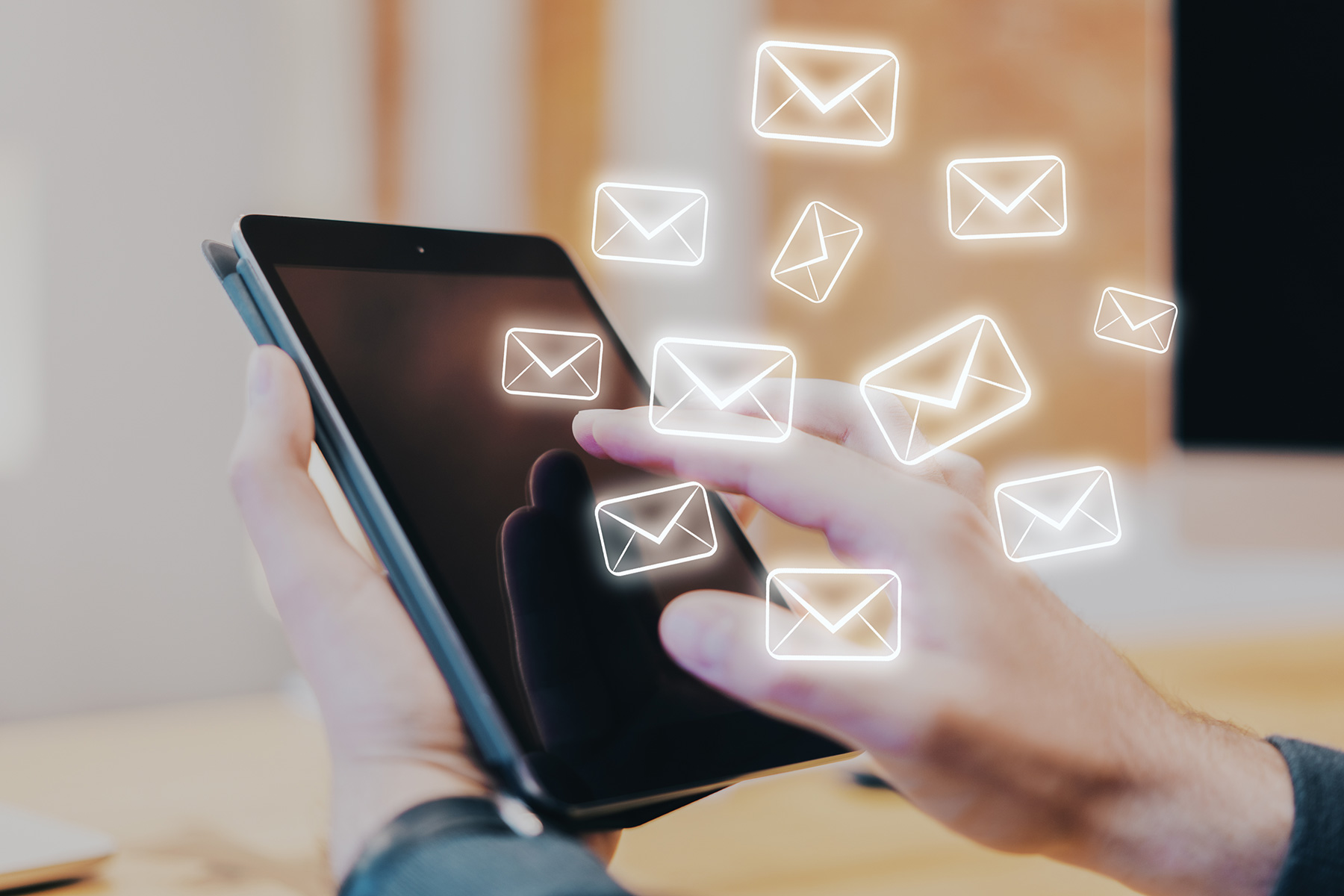
Encrypted email sounds technical at first. Day-to-day, it can feel as simple as clicking one extra button before you send. You still write normal messages. You still talk with patients, clients, and staff. The main change sits behind the scenes. The content of key emails travels in a private, protected form.
You can fit encrypted email into your work without redesigning everything. It can live inside Outlook or Gmail. It can sit in a secure message portal. It can protect both messages and important files. If you want a broad overview of what encrypted email is before you dive into using it, the MailHippo guide to encrypted email provides a clear starting point.
This guide stays practical. It shows where encrypted email helps in real life, how people send and read it, and which habits keep it safe and simple.
What an encrypted email looks like day to day
From a sender’s perspective, an encrypted email still starts with a blank message window. You type an address, write your note, and attach any files. Then you pick a secure send option, such as a small lock icon or a “send secure” button. The system takes care of the encryption.
From a recipient’s point of view, an encrypted email may appear in two main ways. In some cases, it opens directly in the inbox, with a small lock icon or banner at the top. In other cases, the inbox contains a short-notice email with a link. That link opens a secure page where the full message sits.
Staff can keep their usual email apps. Patients and clients can keep their current email addresses. Encrypted email slips into that world and provides protection, rather than asking everyone to change tools.
When people use encrypted email
Personal privacy
Some people use encrypted email to keep personal notes out of general view. That can mean ID scans, family documents, or private discussions. Normal email leaves that content open to more systems and staff than many people realize.
Encrypted email shrinks that circle. Only the sender and the approved recipient can see the message in clear form. Others see scrambled data or get a login screen. That gives peace of mind on shared Wi‑Fi and shared devices.
Work communication
Managers, dentists, doctors, and office staff all send messages that carry work secrets. These can include pricing, strategy, HR notes, and vendor terms. Plain email can turn one hacked inbox into a large leak.
Encrypted email turns these key threads into harder targets. Attackers who grab stored messages now face protected content. The same goes for curious insiders who should not see everything.
Sensitive files
Many risks hide in attachments. Reports, financial statements, scanned forms, and legal drafts often travel as files. These documents often carry more detail than any short email body.
Encrypted email protects these files during the trip. Some systems extend that protection into storage. Others pair message encryption with protected attachments such as password-locked PDFs. Either way, sensitive files sit under more than a simple paper clip.
Regulated information
Teams in health, finance, and law often handle information subject to strict rules. Think of patient charts, card details, or case files. Regulators often expect strong protection both in transit and at rest.
Encrypted email helps meet that expectation. It shows that you treat regulated information with care when you send it. It also supports policies and audits that assess how you protect key data in transit.
Ways people use encrypted email
Built-in secure send tools
Many organizations enable secure send options in Microsoft 365, Google Workspace, and similar services. Staff then see small buttons or labels in Outlook or Gmail when they compose a message. A single click marks that email as encrypted.
Admins can set rules to trigger encryption when messages match certain patterns. For example, when an email includes the word “patient” or “SSN”. Staff still have manual control for one‑off cases.
Secure message portals
Secure portals move the private content into a protected website. The inbox shows only a plain email that says something like “You have a secure message” with a button. When someone clicks the button, a secure page opens in the browser.
Portals often use passwords or one-time codes to check identity. Once the person signs in, they read the message and download the files inside that page. Replies can stay in the same portal. This model suits clinics, legal practices, and small firms that work with many outside people.
PGP
Some users, often more technical, use PGP-based tools. PGP relies on public and private keys. The sender encrypts the message on their device. The recipient’s private key decrypts it. Service providers in the middle see only scrambled content.
In its raw form, PGP can feel complex. Many modern services now use PGP under the hood and hide the key work. From the user’s view, it then behaves like any other secure send option.
S MIME
Many large organizations use S MIME. This method uses digital certificates that link keys to people or to roles. Outlook and Apple Mail already know how to handle S MIME once certificates are in place.
IT teams or providers install certificates on staff devices. Staff then see lock and signature icons in their mail client. Clicking these icons sends encrypted and signed messages inside and sometimes beyond the organization.
Protected attachments sent by email
In some teams, the main step sits with the file. They lock PDFs, Word documents, spreadsheets, or zip folders with passwords. They then email those files as attachments. The email can be plain or encrypted on top.
This approach is common when the biggest risk lies in a single document, such as a tax return or a lab report. Recipients open the file in a viewer and enter the password that the sender shares through a separate channel.
How to get started
Choose the method
First, pick the style that fits your current tools and contacts. If you already use Microsoft 365 or Google Workspace, built-in secure send may be the fastest path. If you mainly write to patients on many different email tools, a secure portal may make more sense.
Think about IT support. If you have a provider or internal team, S MIME or a managed secure email service may be a good fit. If you handle things yourself, built-in tools and simple portals may be easier to use.
Check recipient access
Next, think about who will open these messages. Staff inside your organization often use the same client and can handle direct inbox decryption. Patients and clients may only have a phone and basic apps.
Pick a setup that matches them. If they can open a link and read a page, a portal works. If they use modern inbox apps, in‑place encryption may work. Edge cases can still use protected attachments.
Learn what parts of the email are protected.
Ask your provider or IT contact which parts of each message are encrypted: the body, attachments, or both. Also, ask what happens to subject lines and addressing data.
Once you know that, you can shape your habits. You can treat the body and files as safe places for private data. You can keep subjects and wide recipient lists free of sensitive details.
Decide how to handle attachments.
Decide what you will do with files by default. Some teams say, “encrypt the message and password-protect any file with health or payroll data”. Others say, “move all large or critical files into the portal and send links only.”
Write that choice down in one or two lines for your team. Clear defaults help staff act quickly while staying safe.
Basic send process
Draft the message
Open a new email in your tool or portal. Add the recipient address and a short, general subject. Write the body in plain language. Explain what you are sending and what action you need.
Place all private facts in the body, not the subject. That includes names, record details, and money numbers. Remember that encryption will focus on this area.
Add files
Attach any files you want to share. Check each file on your device first. Fix errors now, not after sending. If a file needs its own lock, apply that before you attach it.
Keep a clean list of which file names in your folders are protected. Use a name that makes this obvious, such as adding “protected” to the name.
Turn on protection
Find the encrypt or secure send control in your mail tool or portal. Turn it on for this message. Look for a lock icon, special label, or banner that confirms the setting.
If your system supports different levels, choose the one that states clear content protection. That might be “Encrypt” rather than just “Confidential”.
Review the subject line and recipients.
Before you click send, pause for a short review. Read the subject line and strip out any private details that slipped in. Then check the address list with fresh eyes. Confirm that every address should see the message.
For very sensitive content, think about whether all recipients need the full thread. Sometimes, a separate secure email to a smaller group works better than a long, wide chain.
Send the message
Once content, files, and settings look right, send the email. For a new setup, ask the recipient to confirm that they can open and read it. Use that early feedback to adjust any confusing parts.
Basic receive process
Open the email notice.
Recipients start in their normal inbox. They open the message that mentions secure content. That may be the full email with a lock icon, or a short notice with a button.
They should take a second to confirm the sender’s name and domain. That quick check helps them avoid fake “secure message” emails from scammers.
Verify identity if asked.
If the system uses a portal or one-time code, the next screen will ask for identity proof. That might be a login, a password, or a code sent by text.
The recipient enters those details once for that session. The system then unlocks the secure view. The email itself does not hold the private content.
Read the message
Once access is granted, the person reads the message much like any other email. They can scroll, reply, and move between messages in that view.
If something looks odd or empty, they can contact the sender using a known phone number or the main website to confirm that the email is from a legitimate source.
Open any protected files.
If the message includes files, the person clicks to open or download them. For locked PDFs or office documents, the viewer will ask for a password. For portal files, the site may offer view-only or download options.
Recipients should treat downloaded copies as private documents. They can store them in a safe folder rather than on a shared desktop.
Good habits when using encrypted email
Keep subject lines general.
Subject lines often sit outside the encrypted part of the message. Many people see them on phones before they even unlock the screen. Simple, bland subjects keep you from leaking content at that level.
Think “Your recent visit” instead of “Full oncology report for John Smith”. That small change makes a big difference.
Share passwords in a separate channel.
If you use passwords for PDFs, zips, or portals, share those passwords away from email. Text, phone, or a secure chat all work. Never place the password in the same email as the protected item.
This habit keeps a single stolen email from handing attackers both the lock and the key.
Use strong account security.
Encrypted email helps only if accounts stay under the right person’s control. Strong, unique passwords, sign-in alerts, and multi-factor login all matter here.
Teams that combine encryption with strong account security gain far more safety than those that treat encryption as a magic fix.
Test with trusted recipients
Test each new secure send method with people who will tell you the truth. That might be a nurse, an assistant, or a long‑time client. Ask them to open messages on both the laptop and the phone.
Listen for any friction. A painful extra step for them today will turn into delays and support calls later.
Common mistakes
Assuming encryption hides everything
Encryption protects the body and attachments in most systems. It rarely hides subject lines, sender and recipient addresses, or time stamps. People can still see that contact happened, even if they cannot read the message.
Safe use means keeping real secrets in the body and files. It means treating outer fields as less private.
Forgetting attachment protection
Some teams enable message encryption, yet still attach open files stored in multiple locations. Once a recipient saves a file outside an encrypted message, that file can spread freely.
For important documents, pair message encryption with protected attachments or secure links. Do not rely only on the envelope.
Sending the password in the same message
This mistake shows up often. The sender locks a PDF, then writes “Password is 1234” in the email body. That step cancels out most of the gain.
Make it a clear rule on your team that passwords travel in a separate channel each time.
Using an encrypted email for the wrong task
Some tasks do not fit email, even with strong encryption. Sharing master passwords, long-term keys, or very large record sets often falls into this group.
Those cases are better suited to secure link tools or dedicated secret sharing. The MailHippo guide on sending a secure link explains how to handle that kind of data.
When a secure link works better than an encrypted email
Secure links fit best when you want strong control over a document after you send it. They shine for large files, frequent updates, and information that should not sit in many inboxes.
A secure link keeps the document in one protected place. You can turn access off, track views, and avoid email size limits. The email itself becomes a simple pointer, not a container.
Encrypted email still helps in many daily cases. Think of short notes with simple attachments. For heavy or long‑lived content, secure links often win.
Common questions
How do I use encrypted email?
Use encrypted email by adding one extra step to your normal send flow. Draft your message, attach files, turn on the encrypt or secure send option, check the subject and addresses, then send. For the most sensitive files, add file-level locks or secure links as well.
The MailHippo guide on how to encrypt an email, step by step, provides detailed instructions for the sender. The companion article, “How to open an encrypted email on any device,” covers the reader’s side.
Do both sides need special tools?
For built-in and portal-based methods, the sender needs an account on the secure system. The recipient often only needs a modern browser and a basic email app. PGP and S/MIME may need extra setup on both sides.
If you want an easy rollout, start with a method that asks the least from your patients or clients. Portals and built-in secure send tools usually meet that mark.
Can I use an encrypted email on my phone?
Yes. Most major secure email methods work on phones. Outlook and Gmail apps can show protected messages. Portals open in mobile browsers. People can enter one-time codes on touch screens.
Always test your chosen method on the same kinds of phones your patients or staff use. If it works there, it will work almost everywhere.
What is the easiest way to start?
The easiest path is often to turn on the built-in secure send in your current email platform and set a simple rule such as “Encrypt any message with patient or payroll data”. Train staff on one clear button and subject line habits.
Once that feels normal, you can add protected attachments and secure links for the highest risk cases. The MailHippo guide on sending a secure link is a good next step once you reach that point.
Read next
If you want a detailed walk-through of each click when you encrypt a single email, read how to encrypt an email step by step. It turns this high-level picture into concrete steps.
To help your patients, clients, and staff on the other side, share instructions for opening an encrypted email on any device. That guide clears up common access questions.
For tasks that really should not live in email at all, see how to send a secure link. It shows how links can work with encrypted email to keep your most sensitive information safe.